
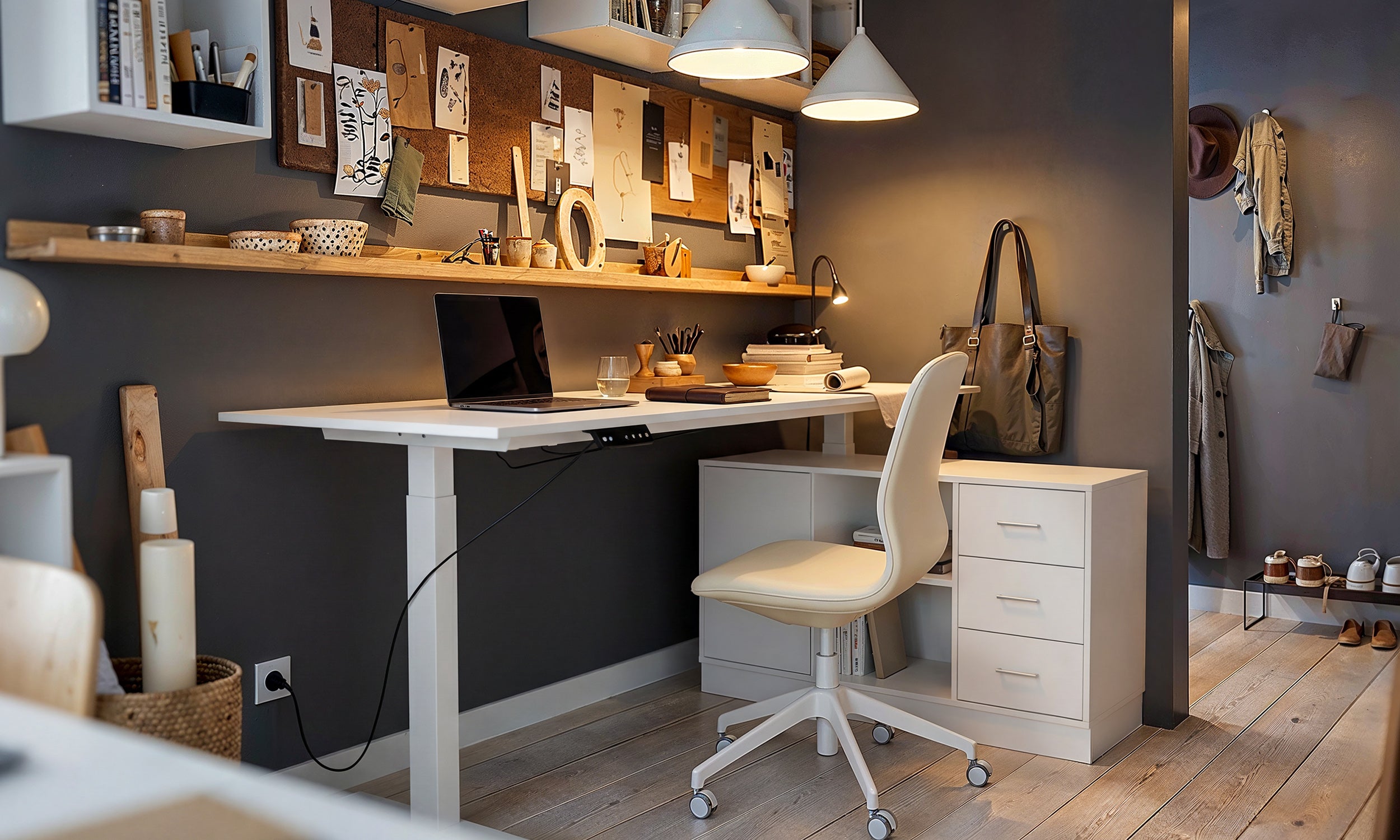


Finding yourself constantly hunching, elevating your shoulders, or resting your forearms awkwardly against hard table edges is a frequent signal that your desk setup is working against your natural posture. Many people assume personal posture habits are the primary culprit, but the underlying issue is often simple spatial geometry: your fixed furniture dimensions create a desk too high for your body and seating configuration.
Why Most Standard Desks Feel Too High
Mass-market furniture manufacturing historically developed around standardized dimensions intended to accommodate a single generalized profile. When tables and work surfaces are manufactured with fixed leg frames, the final surface often rests higher than the relaxed elbow height of many users when seated comfortably. For anyone who does not match that baseline proportion, a fixed desktop forces the upper body into unnatural compensation patterns.
When a tabletop sits higher than your natural typing or writing plane, your arms cannot hang naturally from your shoulders. Instead, your forearms angle upward, placing pressure against the front edge of the surface. Over hours of work, this geometry leads to elevated shoulders, upper back fatigue, and restricted circulation along the wrists and forearms.
Diagnosing the Desk Too High for Chair Mismatch
Recognizing the physical indicators of a mismatched desk setup helps determine the right structural fix. A classic desk too high for chair scenario presents distinct physical cues:
- Shoulder elevation: Your shoulders lift toward your ears when resting hands on your keyboard or writing surface.
- Forearm contact pressure: The hard front edge of the desktop digs into your forearms or wrists rather than allowing light, level contact.
- Armrest interference: Your chair armrests bump into the desktop frame or drawer apron, preventing you from pulling close to your work area.
- Leg angling: You find yourself raising the chair to reach the surface, leaving your feet dangling without stable floor contact.
Evaluating these factors together allows you to coordinate furniture dimensions effectively. For a broader perspective on selecting balanced components, reviewing a dedicated chair desk guide can help you evaluate how seat mechanics interact with fixed frames.
Seating Elevation vs. Under-Desk Leg Clearance
A common quick response to a high work surface is simply raising the office chair cylinder to its maximum height. While this can bring your forearms into a more level relationship with the keyboard, it frequently introduces a secondary spatial dilemma: diminished leg clearance and suspended feet.
When you raise the seat pan, the space between the top of your thighs and the lower underside of the desk shrinks. If your desk includes integrated under-mount drawers, keyboard trays, or thick support aprons, your knees may collide with the cabinetry. Furthermore, when the chair rises, your feet lose full, flat contact with the floor, transferring excessive pressure to the undersides of your thighs and destabilizing lower back support.
Practical Adjustments: Elevate, Support, or Drop the Surface
When you realize your desk too elevated for everyday comfort, replacing the entire piece is not always necessary. Several targeted mechanical adjustments can bridge the dimensional gap and establish a supportive, proportional workstation.
Calibrating Chair Height with Dedicated Footrests
The most accessible ergonomic strategy involves raising your seating plane to align with the desktop height, then actively compensating for the floor gap below. By positioning an angled, stable footrest beneath your workstation, you create an elevated secondary floor plane. This supports your feet flatly, keeps knee joints at a comfortable right angle, and relieves pressure behind the thighs while maintaining proper arm alignment with the desktop surface.
Adding Under-Desk Keyboard Trays
If raising your chair causes your knees to contact the underside of the table or makes the overall seating position feel precarious, the alternative strategy is lowering the actual working plane. Attaching an under-desk keyboard tray drops your primary typing and mousing platform several inches below the main tabletop surface.
This hardware addition keeps the primary surface available for stationary monitors, reference books, and task lighting, while bringing active input devices down to resting forearm height. If your desk surface feels cramped or improperly tiered, exploring a comprehensive desk too guide offers helpful spatial layouts for reallocating heavy hardware onto dedicated stands and mounting arms.
Optimizing Workspace Storage When Modifying Desktop Height
Adjusting physical workstation geometry often changes how you interact with surrounding storage furniture. When you raise your chair or install lower trays, standard under-desk storage units, such as rolling file pedestals and fixed side drawers, require re-evaluation.
To maintain clean movement and adequate legroom, consider relocating bulky storage components outside the immediate knee-well zone:
- Lateral storage placement: Position mobile file cabinets and box drawers to the outside flank of the desk rather than directly underneath the primary seating area.
- Freestanding credenzas: Use adjacent low credenzas or modular sideboards to house printers, document trays, and office supplies, keeping the active desk interior clear.
- Vertical wall shelving: Mount modular shelves or pegboards above the desk to lift task items off the work surface, balancing functional reach and visual open space.
For more inspiration on balancing compact dimensions with refined furniture selections, consult our desk high guide to integrate practical storage pieces that complement your ergonomic setup.
Workstation Height Troubleshooting Checklist
Use this straightforward checklist to assess your setup and make incremental adjustments until your workspace supports relaxed, balanced productivity:
- Check resting arm posture: With your chair adjusted, let your arms hang loosely at your sides and bend your elbows. Your hands should rest naturally on your work surface without raising your shoulders.
- Evaluate feet and thigh support: Ensure your feet rest firmly on the floor or an angled footrest, with even weight distribution across the seat cushion.
- Clear the knee-well: Verify that there is ample open space between your knees and the underside of the desk frame, aprons, or keyboard mounts.
- Align screen height: Once your seating height is locked in, elevate your monitor so the top third of the display aligns near eye level, preventing downward neck tilt.
- Rebalance surface storage: Keep daily tools within easy forearm reach to avoid excessive forward leaning across an elevated surface.


Laisser un commentaire
Ce site est protégé par hCaptcha, et la Politique de confidentialité et les Conditions de service de hCaptcha s’appliquent.