
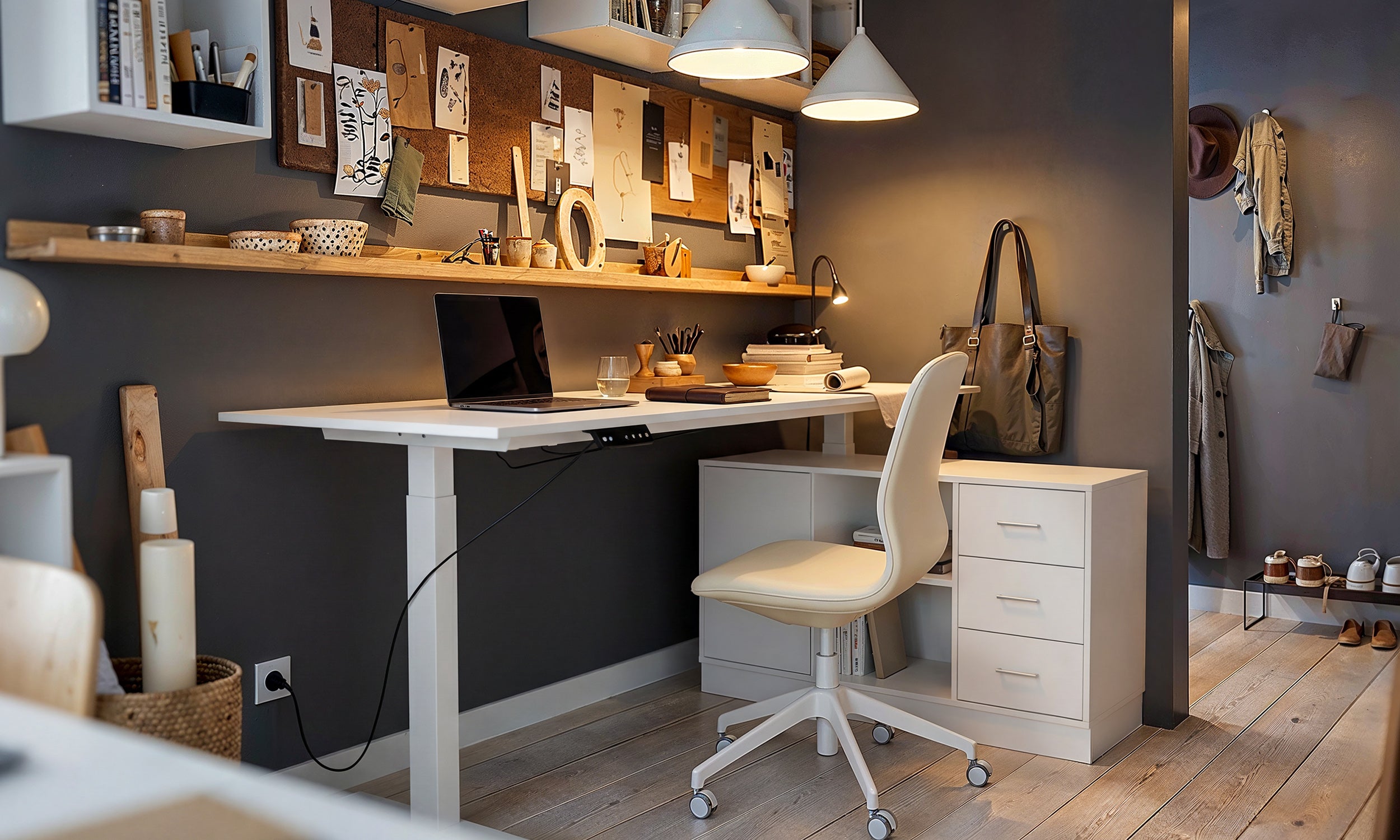
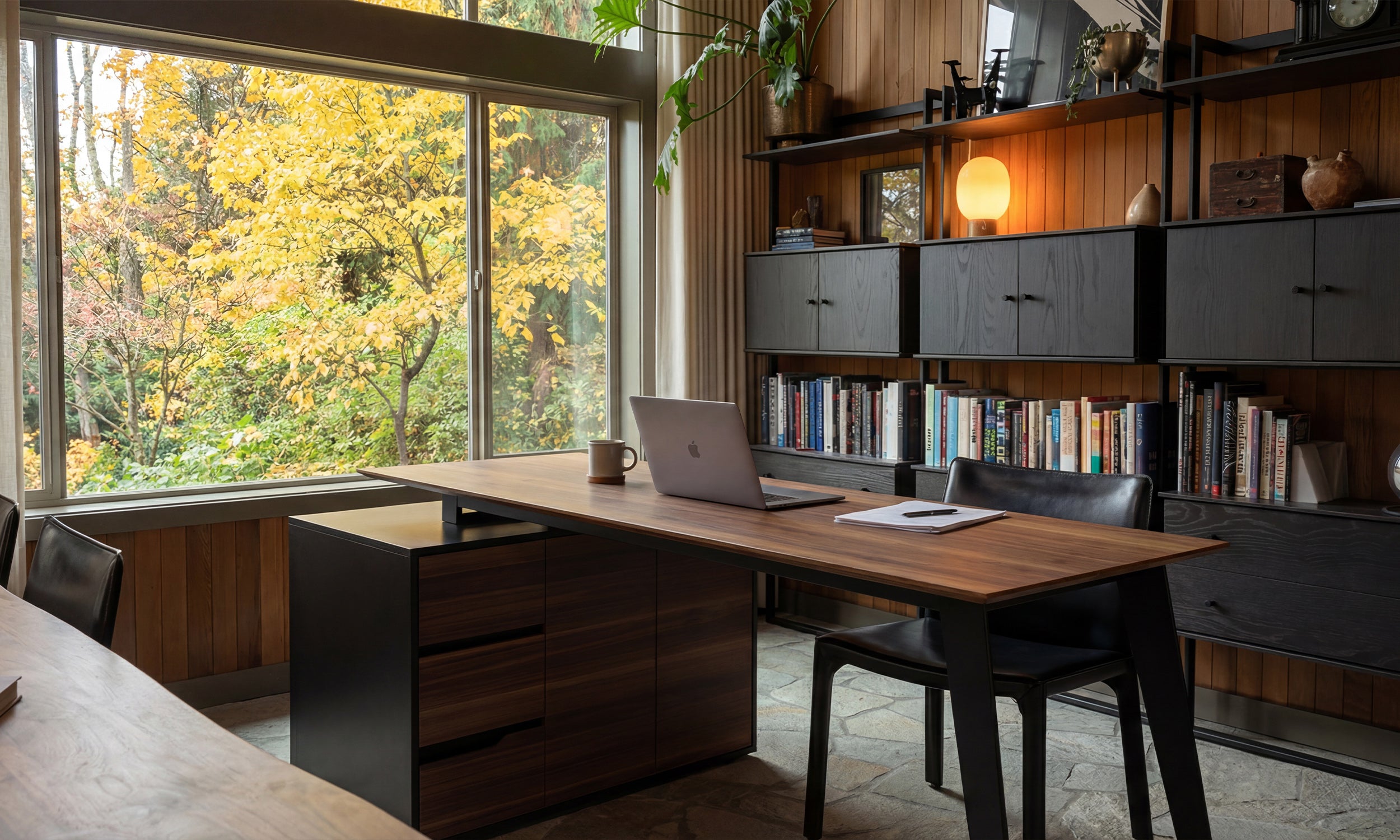
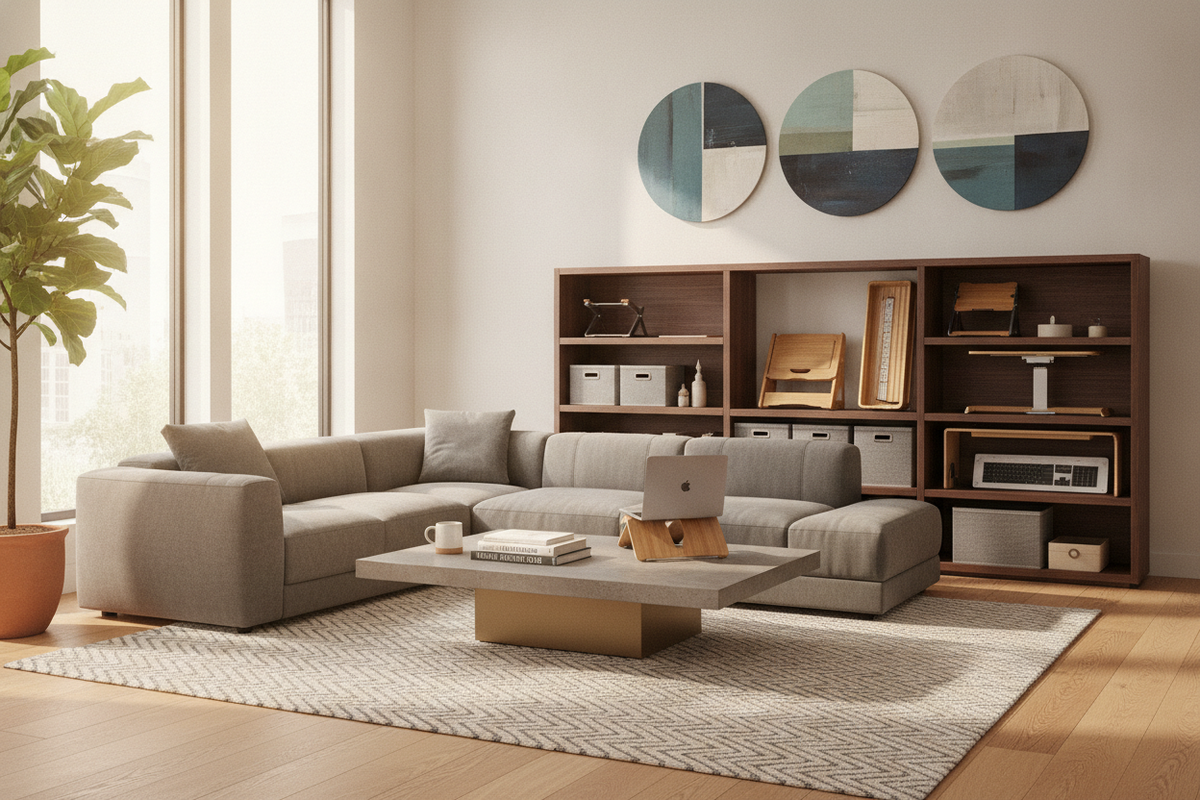
Modern home offices and dedicated study zones require functional, intentional furniture planning. Placing a screen directly onto a flat desktop often forces a fixed viewing angle and consumes prime workspace territory. Introducing an adjustable computer stand alters this dynamic, converting a basic flat plane into a layered, ergonomic workstation. By evaluating elevation mechanisms, footprint dimensions, and storage coordination, you can build a clean setup that supports productive daily work.
Understanding the Role of an Adjustable Computer Stand in Workspace Architecture
A well-planned desktop balances horizontal utility with vertical organization. When monitors sit flat on standard tables, users often experience suboptimal viewing postures that draw the upper body forward. Similar to how elevated media displays apply ergonomic sightline principles to prevent neck strain, raising a workstation monitor aligns display heights with natural eye level.
Beyond physical comfort, elevating your screen unlocks the surface beneath it. An elevated platform creates a designated staging zone for notebooks, docking stations, and input peripherals, effectively recovering square footage that would otherwise be lost under a wide display base. This architectural approach treats the desktop as a three-dimensional layout rather than a flat surface.
Core Elevation Formats and Mechanisms
Different desk layouts and workflows require distinct mechanical approaches. Selecting the right elevation format depends on how frequently you plan to adjust display height and the level of structural articulation required.
- Fixed-Tier Risers with Multi-Level Pin Settings: These tabletop units feature stepped leg slots or modular pegs. They provide rigid structural stability and are ideal for setups where the user maintains a consistent seating posture and requires dependable platform strength.
- Articulating Gas-Spring and Counterbalance Arms: Clamped directly to the desk rear or routed through a grommet hole, these mechanisms offer fluid full-motion adjustment, allowing monitors to tilt, swivel, and translate horizontally across the work surface.
- Scissor and X-Lift Desktop Converters: Designed for active sit-to-stand transitions, these broad platforms use assisted pneumatic springs to elevate both screen and keyboard surfaces simultaneously.
- Specialized Tall Computer Stand Configurations: A dedicated tall computer stand provides extended vertical travel, accommodating higher standing desks, secondary reference displays, or users who prefer an elevated sightline when working from drafting stools.
Desktop Sizing Tiers and Surface Footprints
The operational success of a computer table top stand depends on selecting dimensions proportional to your primary desk. Oversized risers crowd peripheral zones, while undersized platforms can compromise screen stability.
Compact Single-Device Risers
Compact stands are tailored for single laptops or modest desktop monitors. These units generally preserve maximum free tabletop space on compact writing desks or secondary console tables, providing just enough clearance underneath to slide away an external keyboard or slim mousepad.
Standard Mid-Width Platforms
Mid-sized risers comfortably hold larger standalone monitors or all-in-one workstations. They often feature partitioned lower cavities, offering dedicated bays for charging hubs, small organizers, or hard drives alongside your primary typing accessories.
Extra-Wide Dual-Monitor Platforms
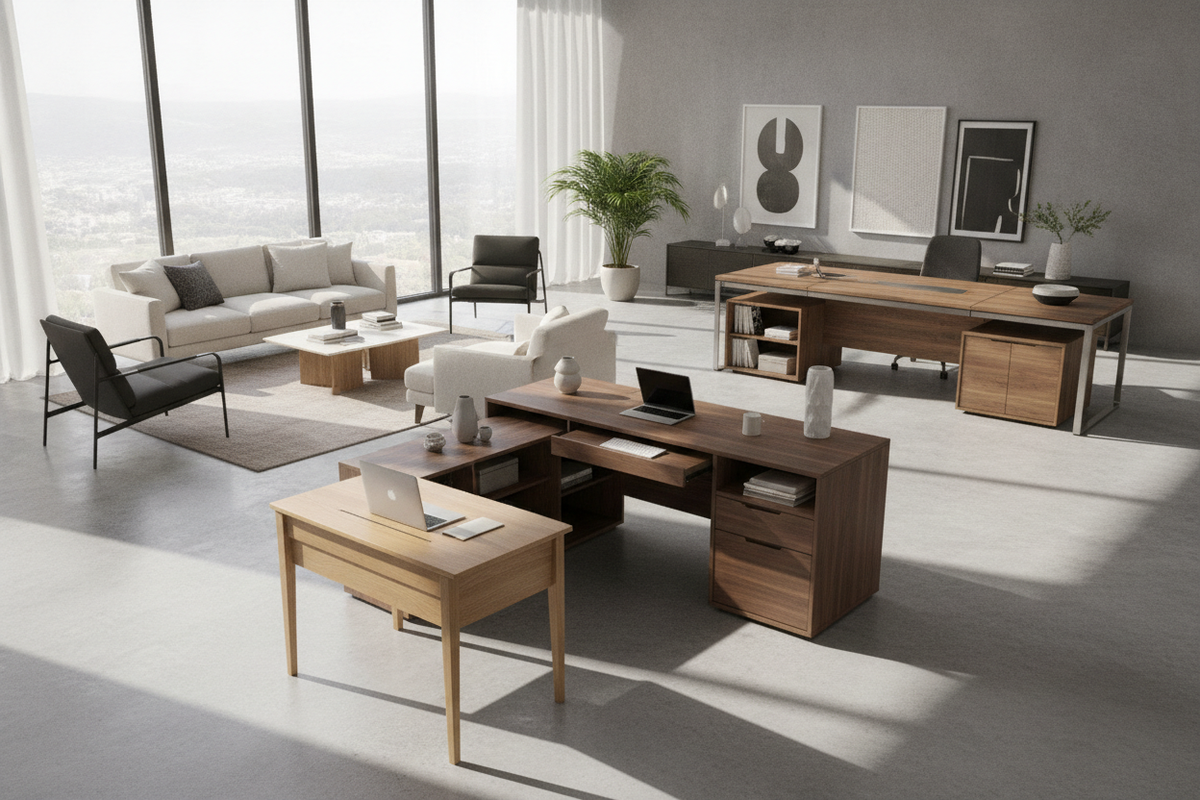
Designed for multi-screen configurations, expansive risers span a significant portion of the desktop length. These dual-surface units provide a unified look across wide executive or credenza desks, bridging multiple displays onto a single elevated plane while creating a long under-shelf gallery for stationary storage.
Evaluating Structural Stability, Weight Capacity, and Materials
Choosing among adjustable computer stands for desks requires a close look at material composition and structural stability. A wobbly stand introduces screen vibration during active typing, disrupting concentration and visual clarity.
- Engineered Wood and Composite Surfaces: Dense composite tops and laminated panels provide substantial rigidity, resisting surface bowing while seamlessly matching surrounding wooden office cabinetry.
- Reinforced Steel and Aluminum Frameworks: Metal substructures provide structural strength without excessive bulk, ensuring smooth height adjustments and durable joint connections.
- Base Geometry and Friction Pads: Wide-stance feet equipped with non-marking silicone or rubber pads prevent platform shifting, absorb micro-vibrations from typing, and protect desk surfaces from scratches.
- Balanced Weight Distribution: Ensuring your monitor base aligns over the platform support points prevents forward tipping, especially when using heavy displays or articulating laptop trays.
Cable Routing, Peripherals, and Desktop Storage Coordination
Elevating computer hardware exposes display inputs, power cords, and accessory cables. Without proactive management, the open area beneath an elevated shelf can quickly accumulate clutter.
Many modern stands incorporate rear pass-through slots or magnetic cable channels to guide cords neatly down the back of the furniture. Organizing wiring along the rear boundary keeps the lower cavity accessible for daily-use items. When configuring secondary desk accessories and printer stations, pairing your riser with flexible vertical cabinetry and adjustable storage solutions creates a clutter-free perimeter around the primary workstation.
Selecting the Ideal Stand for Your Workstation Configuration
Finding the right balance between mechanical adjustability and clean aesthetic design ensures your workspace remains organized and comfortable. Use the following structured checklist to evaluate prospective platforms against your room layout:
- Measure Available Desk Depth: Ensure the stand base leaves ample forward clearance for your keyboard, wrist rest, and active notebook zones.
- Identify Hardware Weight and Base Profile: Match the platform width and load structure to your monitor footprint so the display rests securely without overhang.
- Determine Daily Adjustment Frequency: Choose fixed or stepped risers for set-it-and-forget-it arrangements, or select dynamic counterbalance arms if you regularly alternate between sitting and standing.
- Harmonize Finishes with Office Storage: Match the stand metal tones and surface wood grains with adjacent credenzas, floating shelves, and file cabinets to create a unified interior palette.
Integrating a well-proportioned stand brings structure, clean sightlines, and practical storage to any workstation.


Laisser un commentaire
Ce site est protégé par hCaptcha, et la Politique de confidentialité et les Conditions de service de hCaptcha s’appliquent.