
Motorized sit-stand desks rely on synchronized linear actuators and digital control boxes to provide smooth height adjustment throughout the workday. However, occasional power flickers, accidental cord snags, or uneven desktop weight distribution can cause the internal controller to lose track of its position. When this happens, your desk may become unresponsive, refuse to lift, display an error message, or become stuck at an elevated position. Performing a manual calibration reset is the primary diagnostic step to restore full functionality and re-align the dual lifting columns.
Understanding Why Standing Desks Lock Up or Lose Calibration
Modern electric height-adjustable desks use electronic control boxes that monitor the pulse counts of internal motor encoders in each lifting leg. If one leg encounters slight mechanical resistance or experiences a momentary drop in electrical supply, the controller detects a potential synchronization discrepancy. To protect the mechanical drive spindles and avoid tilting your workstation surface, the control unit halts movement and enters a failsafe lockout mode.
Common triggers that prompt an automatic lockout include:
- Power Outages or Surges: Sudden loss of AC power while the desk is in motion can clear the volatile memory storing current elevation data.
- Anti-Collision Activation: Built-in gyro sensors or current-sensing limiters halt travel if the desktop bumps into a window sill, chair armrest, or taut cable.
- Loose Cable Connections: Vibrations from everyday height transitions can gradually loosen handset or motor extension plugs beneath the tabletop.
- Uneven Weight Distribution: Heavy desktop accessories, such as multiple monitor arms mounted off-center, can cause one motor to draw more current than the other.
Standard Procedure to Reset an Autonomous Desk
Executing a baseline reset forces the control box to drive both lifting columns to their lowest mechanical limits, establishing a reliable zero reference point. This sequence is standard across many motorized frames, including setups featuring an adjustable standing desk with electric lift system.
Follow these steps to complete the standard calibration cycle:
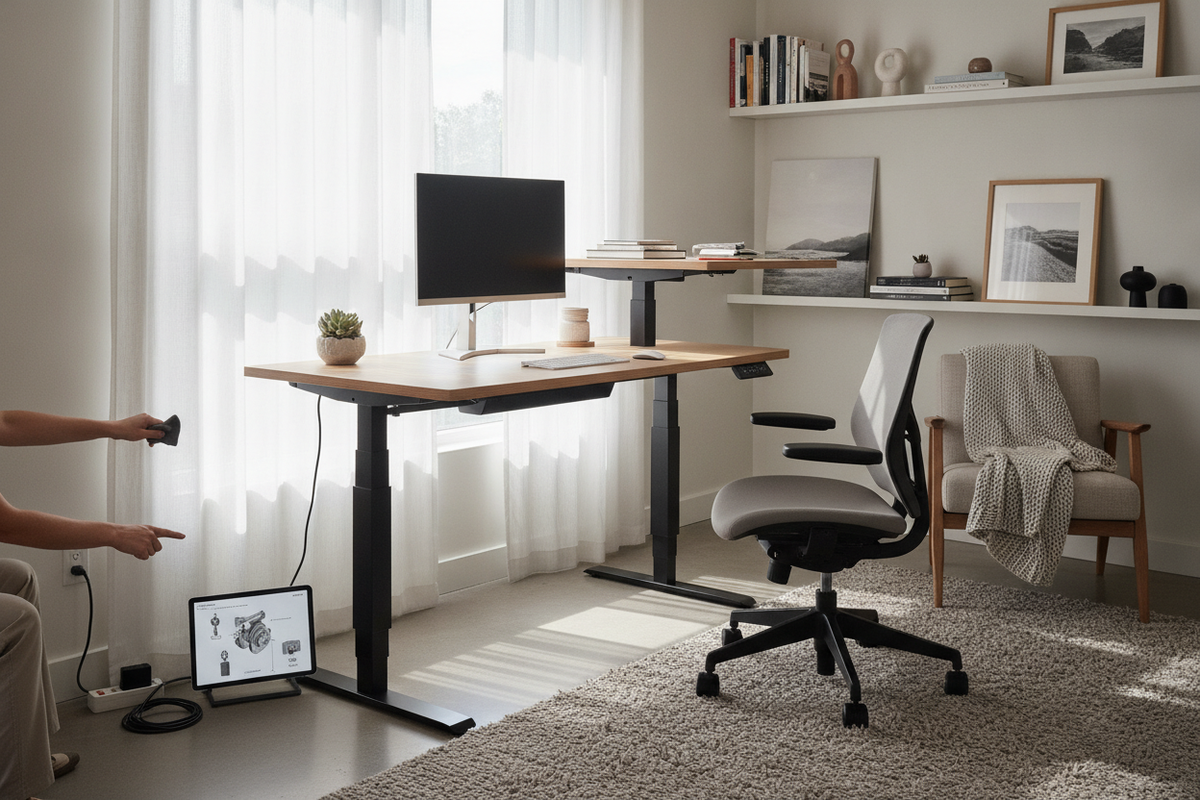
- Clear the Area Beneath the Desk: Remove trash bins, under-desk pedestals, chairs, and loose items to ensure the desktop can descend completely without obstruction.
- Press and Hold the Down Button: Using the handset keypad, press and continuously hold the down arrow. The desk will descend until it reaches its lowest physical height stop.
- Release and Re-Engage: Briefly release the down button, then immediately press and hold it down again for several seconds.
- Observe the Rebound Motion: The desk will typically drop slightly, make a brief stutter or rebound upward by a fraction of an inch, and may emit an audible chime or flash its digital display.
- Test Height Adjustment: Release the button. Press the up arrow to verify that both motorized legs rise smoothly and in unison.
Troubleshooting an Autonomous Desk Stuck in the Up Position
When a standing desk is stuck at standing height and refuses to descend via standard keypresses, the control system may be interpreting a persistent obstacle signal or experiencing an anti-collision false trigger.
To safely troubleshoot an elevated desk lockout:
- Inspect Cord Slack: Look underneath and behind the workstation to verify that computer power cords, surge protector leads, or monitor cables have not been pulled taut against the frame or wall outlets.
- Relieve Surface Load: Temporarily remove heavy computing hardware, books, or clamped accessories from the desktop to eliminate mechanical torque on the lifting columns.
- Check for Physical Binding: Inspect the telescoping leg segments for any signs of physical rubbing against nearby walls, partition panels, or adjacent storage cabinets.
- Initiate the Downward Reset Override: Even if the desk ignores normal downward travel commands, pressing and holding the down button continuously for an extended duration often forces the controller to bypass normal travel profiles and enter forced calibration mode.
Power Cycling and Hardware Connection Diagnostics
If the reset sequence fails to initiate or the keypad remains completely dark, perform a full hardware power cycle and inspect the physical wiring harnesses beneath the desk surface.
Performing a Hard Power Drain
Electronic control boxes contain capacitors that retain residual charge. Disconnect the main AC power cord directly from the wall outlet or surge strip. Allow the desk to sit unplugged for several minutes so the internal circuits fully discharge, clearing transient microcontroller faults, before reconnecting to a verified live outlet.
Inspecting Cable Leads and Handset Ports
Crawl under the desktop to inspect the main control enclosure:
- Ensure the main power supply lead is firmly seated into the control box receptacle.
- Check that both motor extension cables (one from each leg) are clicked securely into their respective output ports.
- Verify that the digital handset plug is inserted straight and locked into the controller interface.
- Inspect visible wiring along the under-frame channels for pinched insulation, crimped wires, or frayed connections.
Resolving Handset Error Displays and Stuck Numeric Readings
Digital display handsets may show alphanumeric fault codes or display frozen numeric readings when communication between the keypad and the control module is interrupted. When numbers appear stuck at zero or the display fails to update during travel, running the full downward reset cycle resets the encoder baseline. If error codes persist after a complete reset and power cycle, verify that the desk is plugged directly into a stable wall outlet rather than an overloaded extension cord or failing power strip.
Workspace Layout and Cable Management to Prevent Motor Strain
Establishing proper workspace ergonomics and organizing peripheral cabling will minimize mechanical stress on electric lift mechanisms, reducing the likelihood of recurring controller lockouts. Exploring comprehensive recommendations in our standing desk design guide can help you route dynamic wiring cleanly.
Managing Dynamic Cable Slack
Every cable running from the moving desktop to fixed wall outlets or floor-mounted equipment must have sufficient slack at maximum standing height. Utilize flexible cable spines, under-desk wire trays, and adhesive clips to bundle leads securely without creating tension points during travel.
Coordinating Floor Space and Storage Clearance
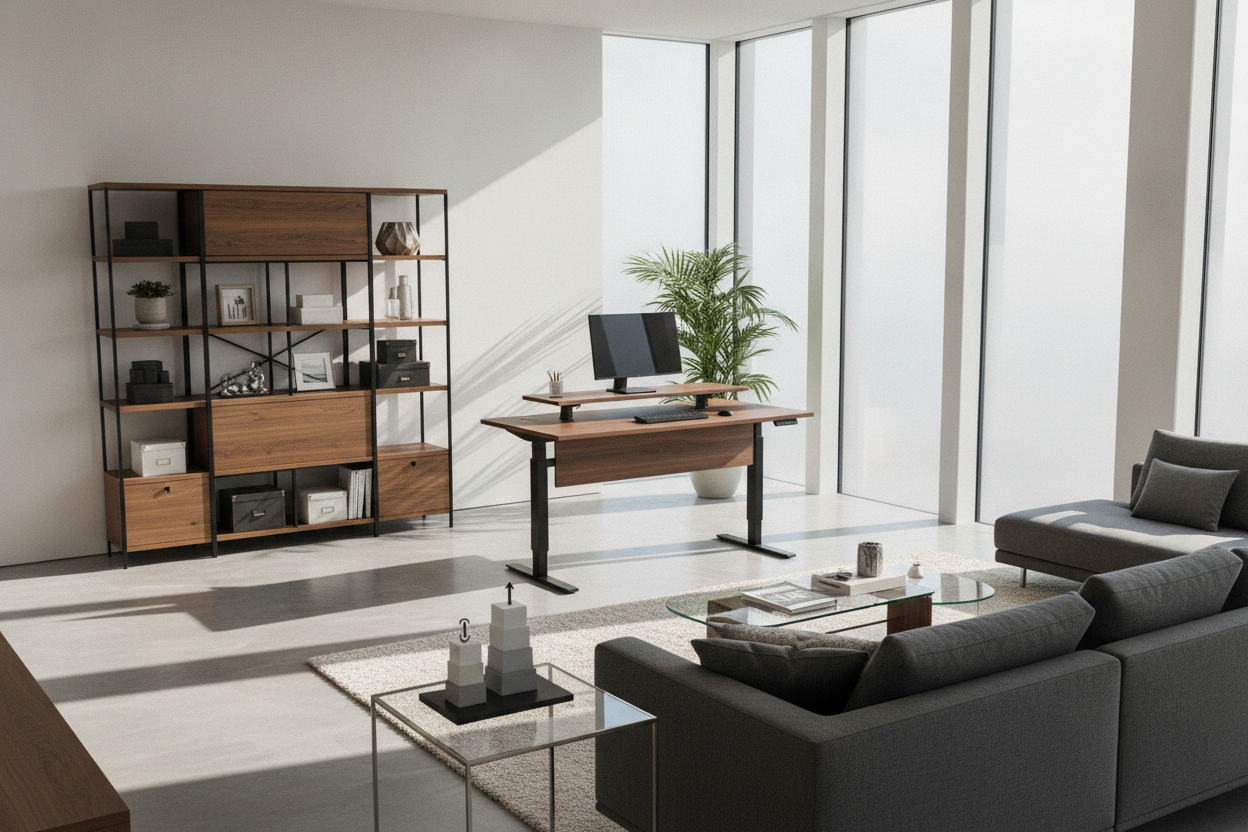
Ensure that storage elements, such as filing cabinets or mobile drawer pedestals, sit completely clear of the descending perimeter. Consulting our standing desk layout guide provides useful insight into coordinating clearance boundaries around dynamic furniture.
Balancing Heavy Workstation Loads
For extensive multi-monitor arrays or heavy studio equipment, selecting an expansive, rigid platform such as a 71-inch height-adjustable desk provides balanced weight distribution across reinforced frame channels, protecting dual-motor systems from premature wear and sensor misalignments.

Laisser un commentaire
Ce site est protégé par hCaptcha, et la Politique de confidentialité et les Conditions de service de hCaptcha s’appliquent.