
Understanding Standing Desk Lock Modes and the LOC Screen Display
Motorized height-adjustable desks bring flexibility and active movement into daily office routines. However, when an electronic controller becomes unresponsive and the digital readout shows LOC, normal height adjustments come to an immediate halt. Knowing how to unlock standing desk controllers requires understanding why this state occurs.
The standing desk loc indicator is primarily a protective feature rather than a hardware breakdown. Modern electric control boxes incorporate digital keypad locks to prevent unintended motorized motion. A standing desk lock may engage when a handset is bumped accidentally, when a sustained touch occurs while leaning against the desk edge, or when an intentional child-safety sequence is activated. In other scenarios, brief power interruptions or control box voltage fluctuations can cause the display to show that the standing desk says loc as an electronic fail-safe. Recognizing this status helps distinguish standard digital locks from mechanical obstructions or synchronization errors.
Core Keypad Sequences: How to Unlock a Standing Desk Displaying LOC
When seeking how to unlock a standing desk, handset button sequences provide the first and most direct diagnostic method. Manufacturers across the commercial and residential furniture landscape utilize standard key combinations on their digital displays to toggle the lock feature on and off.
For a typical standing desk with memory presets, unlocking the interface restores access to stored posture heights and continuous vertical travel. The fundamental step in how to unlock standing desk loc displays involves identifying whether your keypad uses a dedicated programming key or a dual-button combination.
Standard Multi-Button Combinations and Long-Press Protocols
To successfully unlock standing desk control panels across standard electric models, try the following sequential methods:
- The Sustained Set/Memory Button Hold: Locate the key labeled "M" or "S" on the digital interface. Press and hold this button continuously for several seconds until the LED screen flashes or switches from "LOC" back to standard numeric height numbers.
- Simultaneous Up and Down Arrow Activation: On many streamlined controllers without dedicated menu keys, press and hold both the Up and Down directional arrows at the same time for several seconds. When the lock disengages, the screen will switch to the current surface height.
- The Dedicated Lock Icon Protocol: Handsets equipped with an explicit padlock symbol typically require a single sustained press on the lock button until an audible prompt sounds or the display resets.
Brand-Specific Controller Profiles and Human Active Technology Handsets
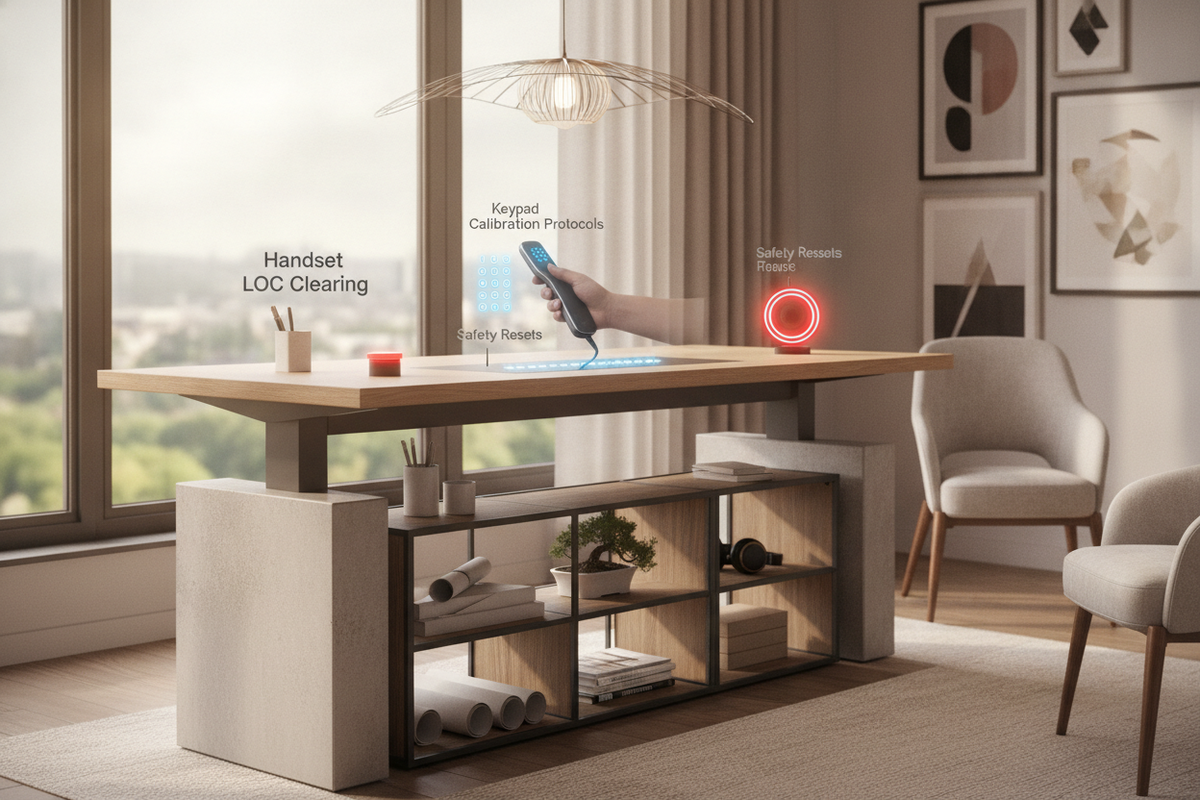
Commercial workspace installations often utilize specialized control boxes. For users managing a human active technology standing desk loc alert, clearing the display typically relies on holding the "M" (or preset function) button until the digital readout clears the lockout prompt. When addressing a standing desk locked how to unlock dilemma across varied office brands, keeping the buttons depressed steadily without interruption is essential, as releasing a button prematurely will cancel the unlock sequence.
Full Hardware Reset Protocols When Digital Unlock Combinations Fail
If handset button combinations fail to clear the lock indicator, the control box may require a full recalibration routine. Motorized desks rely on internal sensors to track leveling and synchronization across lifting columns, and a calibration reset clears persistent display glitches.
When resetting a dual-motor workstation, such as a 71-inch height adjustable standing desk, follow these hardware reset steps:
- Initiate Downward Calibration: Press and hold the Down arrow button. If the desk responds, keep the button depressed until the surface reaches its lowest possible height position.
- Sustain the Reset Command: Once the frame reaches bottom clearance, continue holding the Down button until the display flashes an indicator such as "RES", "RST", or briefly dips downward and rebounds upward.
- Perform a Complete Power Cycle: If the keypad remains completely frozen, disconnect the main power cord from the wall outlet. Wait briefly to allow internal capacitors to dissipate energy, verify that all motor and handset cables are securely seated in the control box, and reconnect the power supply before retrying the reset sequence.
How to Intentionally Lock Your Standing Desk for Workplace Safety
Understanding how to lock standing desk handsets is just as valuable as knowing how to clear the display. Activating the lock mode is an effective way to maintain workspace stability and prevent unwanted actuation.
Intentionally locking your desk offers several practical benefits:
- Child and Pet Safety: Prevents curious hands or pets from activating moving lift columns.
- Cleaning Protection: Allows you to wipe down the desk surface and keypad bezel without triggering accidental height changes.
- Hardware Preservation: Protects mounted computer equipment and accessories from accidental movement when the workspace is unattended.
To engage the lock, repeat the primary button hold sequence (such as holding the "M" button or both directional arrows) until "LOC" reappears on the LED readout.
Workspace Integration: Cable Path Clearances and Storage Coordination
A motorized standing desk operates within an architectural ecosystem of office furniture, including storage credenzas, mobile pedestals, and cable management trays. Mechanical binding against adjacent furniture can trigger control box safety limits that mimic keypad lockups.
When designing a functional standing desk setup, maintain adequate clearance between lifting columns and nearby storage cabinets. Ensure that mobile filing pedestals positioned beneath the desktop do not obstruct downward travel. Similarly, consulting a standing desk spatial layout guide can help you plan articulating cable spines and power cords that move smoothly throughout the desk's entire range of motion without placing tension on electrical connectors.
Troubleshooting Matrix: Differentiating Keypad Locks from Motorized Fault Codes
Not every paused desk is in keypad lock mode. Digital controllers communicate various mechanical and operational states via distinct alphanumeric codes. Knowing the difference between a locked keypad and a motor alert ensures proper troubleshooting.
- LOC or LOCKED: Indicates an active keypad lock mode. The motors and control box are functional, but user input is electronically disabled until unlocked.
- RST or RES: Indicates that the desk requires a calibration reset. The controller must establish its baseline height before normal upward travel can resume.
- HOT: Signals that the lifting mechanism has reached its continuous duty cycle threshold. Allow the control box to rest without pressing buttons until the internal thermal protection clears.
- Error Codes (e.g., E01, E02): Typically point to cable connection disconnections, uneven leg elevation, or weight imbalances. Checking load distribution across a large electric lift standing desk helps maintain smooth dual-motor performance.


Laisser un commentaire
Ce site est protégé par hCaptcha, et la Politique de confidentialité et les Conditions de service de hCaptcha s’appliquent.