
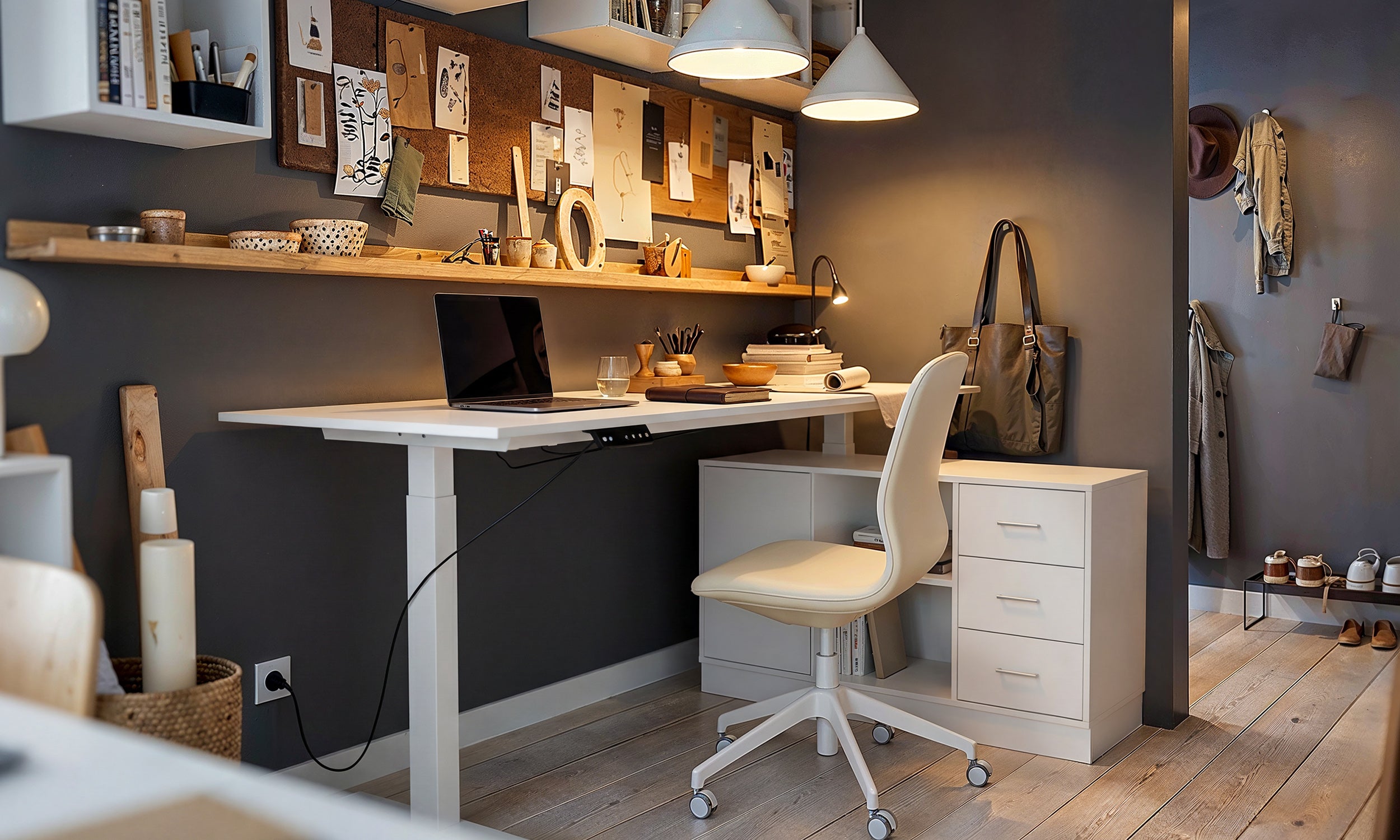
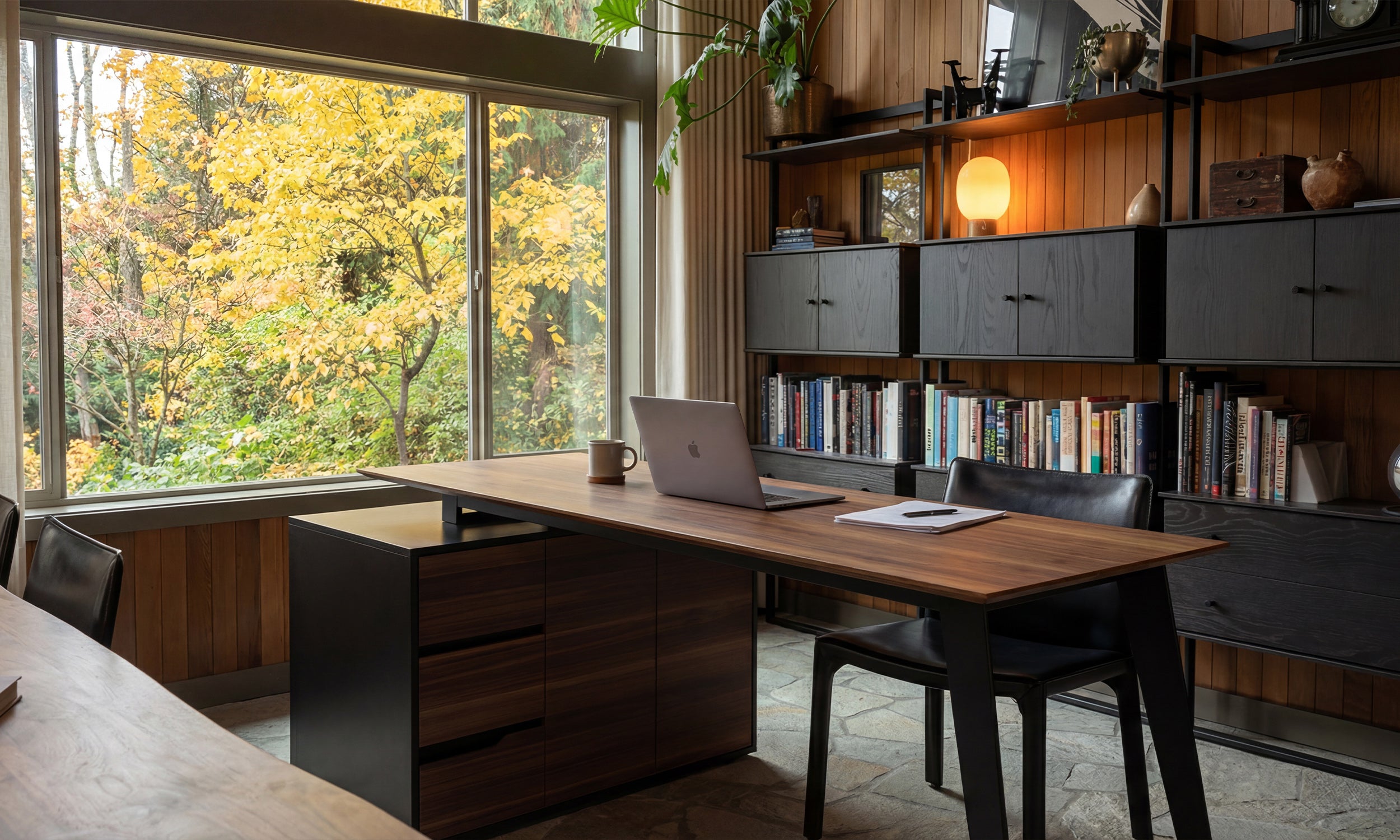
A thoughtfully planned dual monitor desk setup transforms a crowded workstation into an expansive, efficient command center. Whether your workflow focuses on multi-window data analysis, graphic production, code review, or immersive gaming, running two screens doubles visual real estate while introducing unique spatial challenges. Without deliberate spatial planning, two displays can quickly monopolize desktop surface area, generate cable tangles, and force unnatural head and neck posture.
Building a balanced dual screen desk setup requires coordinating display alignment, desk dimensions, mounting equipment, and storage infrastructure. By treating the workspace as an integrated physical system, you can maintain generous working room, preserve clean sightlines, and establish a comfortable posture throughout long working sessions.
1. Ergonomic Geometry: Choosing Your Dual Screen Layout
The foundation of any two monitor desk setup is the physical arrangement of the displays relative to your central seated position. Selecting the right orientation depends primarily on how tasks are divided between the screens.
Visual Alignment and Neck Rotation Frameworks
Two primary screen configurations dominate multi-display workspaces: symmetrical side-by-side and primary-plus-secondary orientation.
- Symmetrical (Dual-Primary) Layout: Both monitors meet directly in the center of your field of view, tilted slightly inward like an open book. This configuration suits users who split attention equally between two active applications, such as side-by-side document comparison or dual-window research.
- Primary-plus-Secondary (Asymmetrical) Layout: The main display sits squarely in front of your natural seated centerline, while the secondary screen angles off to the left or right. This layout minimizes repetitive neck rotation for tasks that center around a main timeline, document, or game window, reserving the peripheral screen for reference notes, communication dashboards, or background audio controls.
For comfortable viewing, positioning display tops near natural eye level and angling displays slightly inward creates an ergonomic focal arc that reduces visual strain.
Horizontal Side-by-Side vs. Stacked Vertical Orientation
While panoramic horizontal positioning remains standard, a stacked vertical arrangement offers a practical alternative for compact footprints. Placing one display directly above the other utilizes vertical room, making it an effective minimalist dual monitor setup strategy for narrow desks. Stacked displays are widely used for monitoring ongoing system logs, chat feeds, or full-page vertical layouts without expanding the horizontal footprint across the room.
2. Desktop Sizing Tiers and Spatial Dimension Planning
Accommodating dual displays alongside input devices and task lighting requires sufficient surface area. Selecting the appropriate desk tier prevents overcrowding and maintains functional boundary zones.
Depth and Span Requirements for Two Displays
When selecting a table surface, desk width and depth must account for display bezels, side-by-side angling, and required viewing distance. Compact worktops often become crowded quickly when supporting wide screen spans alongside mice and keyboards. Choosing a dedicated piece from a curated computer desk collection provides the wide span and deep surface clearance necessary to position dual monitors at a comfortable focal distance while leaving room for resting forearms and organizing notebooks.
Corner and L-Shaped Configurations for Multi-Display Stations
For dedicated multi-screen setups in shared or corner rooms, an L-shaped layout offers natural zone separation. Placing dual monitors along one wing leaves the adjoining section entirely clear for writing, physical document sorting, or secondary hardware. Utilizing a minimalist office computer product with integrated returns allows you to dock multiple screens securely while maintaining dedicated surface zones for non-digital tasks.
3. Mounting Architecture: Desk Stands vs. Articulating Monitor Arms
Factory display stands frequently consume significant depth right in the center of the workstation. Upgrading the mounting structure is one of the most effective monitor setup ideas for reclaiming lost surface area.
Clamp Mechanics, Grommet Mounting, and Surface Rigidity
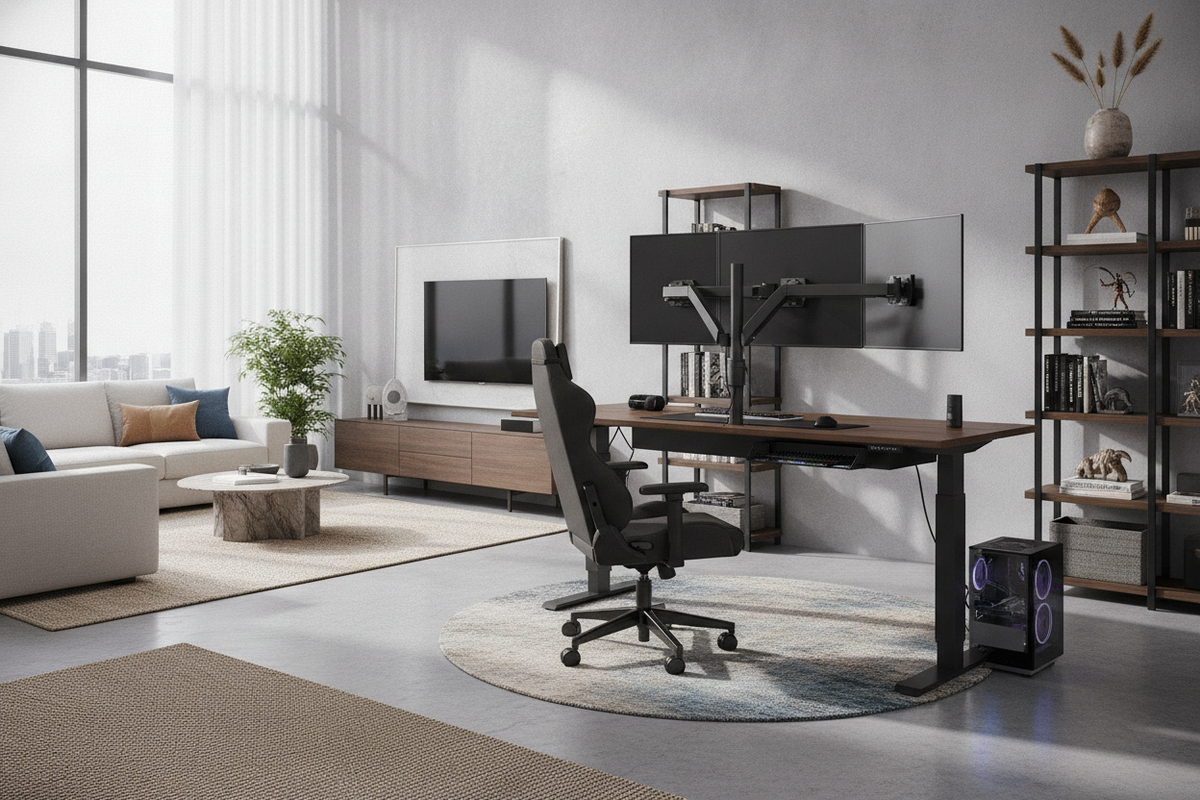
Articulating dual monitor arms attach to the rear edge or through a desktop grommet hole, lifting both screens completely off the desktop plane. This suspension creates open real estate beneath the screens for keyboards, audio interfaces, or desk pads. When implementing clamp mounts, ensure the desktop material offers solid structural core support to distribute cantilevered weight evenly across the clamping plates.
Integrated Monitor Risers with Storage Compartments
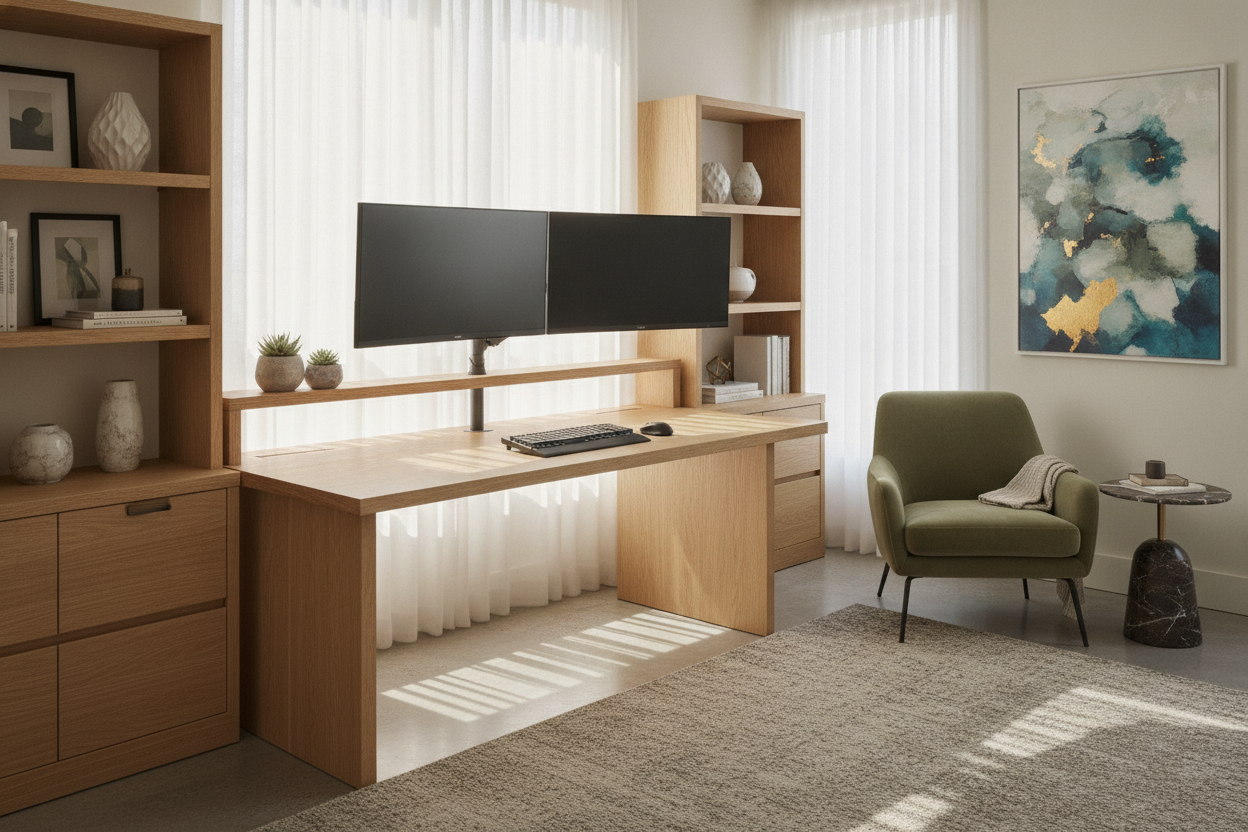
For workstations where clamp mounts are impractical, built-in shelving decks provide an elegant balance of elevation and storage utility. Selecting a computer desk monitor product with a built-in top riser elevates both displays to eye level while establishing sheltered cubbies underneath. These lower compartments provide convenient storage for low-profile keyboards, notebooks, and small desk accessories, keeping everyday tools organized and out of the way.
4. Cable Routing and Clean Cable Architecture
A dual monitor workstation requires power cords, display cables, hub connections, and peripheral wiring. Without a deliberate routing system, these wires can quickly create visual disorder.
Under-Desk Trays, Spine Channels, and Raceway Management
A tidy clean dual monitor desk setup relies on concealing wiring along structural pathways beneath the desktop. Grouping display power and video cords into braided sleeves or raceways guides cables seamlessly from monitor inputs to rear arms and down desk legs. Pairing under-desk wire trays with central power strips ensures that only a single main cord needs to reach the wall outlet. To explore advanced multi-device cabling techniques, review our practical multiple computer desk guide for structured wire-routing ideas.
5. Storage Integration and Peripheral Organization
Expanding to dual monitors often brings ancillary hardware such as external webcams, desktop speakers, docks, and external drives. Maintaining a minimalist dual monitor desk setup requires dedicated secondary storage so the main work surface remains open and orderly.
Offloading Peripherals to Dedicated Storage Cabinets
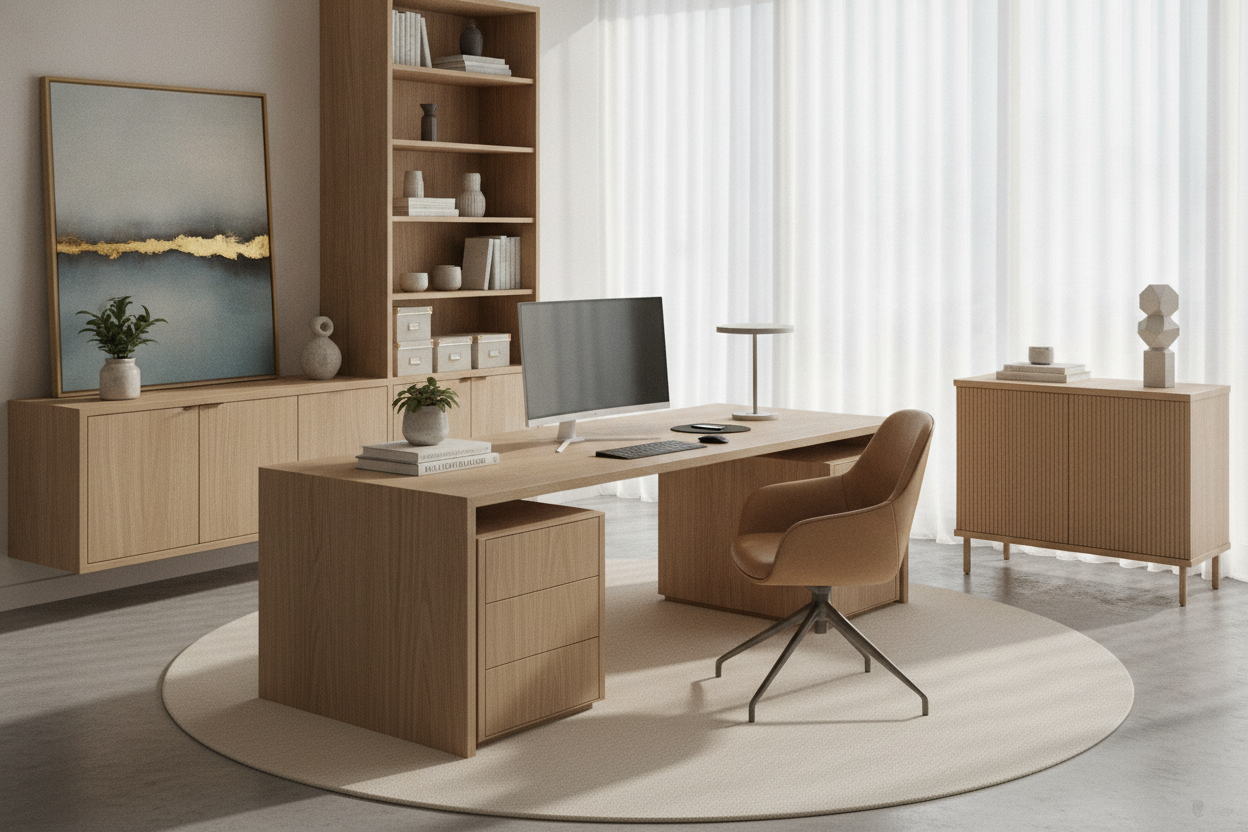
To preserve clean working lines, secondary accessories, archival drives, and stationery should be stored in nearby modular cabinetry, drawers, or mobile pedestals rather than resting directly on the desk surface. For actionable methods on integrating supplementary storage units into your layout, consult our comprehensive office setup desk guide to streamline your workspace footprint.
6. Purpose-Built Setup Archetypes: Productivity, Minimalist, and Gaming
Tailoring the arrangement to your primary activity helps balance aesthetics, utility, and comfort.
The Minimalist Dual Screen Office
A productivity-focused dual monitor office setup emphasizes neutral color palettes, streamlined hardware, and concealed connectivity. Using low-profile mechanical keyboards, wireless mice, and desk-matching monitor light bars reduces visual noise and promotes calm focus during long working days.
The High-Performance Gaming and Streaming Station
A clean dual monitor gaming setup typically pairs a centered high-refresh primary gaming panel with an angled vertical or horizontal auxiliary display for chat channels, stream controls, or system diagnostics. Integrated ambient backlighting behind the screens softens high-contrast display glare in dimly lit rooms while accentuating the visual profile of the battle station.
7. Systematic Step-by-Step Dual Monitor Setup Checklist
- Measure Available Space: Measure room alcoves, wall clearance, and desk surface width to ensure adequate room for two displays angled inward.
- Determine Screen Hierarchy: Choose between a balanced symmetrical alignment or a primary-plus-secondary focal layout based on your daily tasks.
- Select Desktop and Mounting Foundation: Pick an appropriate desk size and select either heavy-duty articulating monitor arms or an integrated monitor riser shelf.
- Route and Conceal All Cables: Anchor under-desk raceways and organize video, power, and peripheral cords into cohesive, hidden pathways.
- Offload Secondary Gear: Place auxiliary hard drives, office supplies, and paperwork into dedicated storage drawers and adjacent side cabinets.

Laisser un commentaire
Ce site est protégé par hCaptcha, et la Politique de confidentialité et les Conditions de service de hCaptcha s’appliquent.