

Understanding AMQ Standing Desk Architecture and Keypad Controls
Modern height-adjustable workstations rely on synchronized motorized columns, an integrated central control unit, and a digital handset interface. When operating commercial electric sit-stand frames such as AMQ Activ-Pro and similar systems, understanding how the electronic control box interprets user commands helps keep day-to-day height adjustments smooth and dependable.
Digital Handset Interfaces and Memory Presets
Digital controllers typically feature up and down directional buttons alongside dedicated numbered memory presets. Programming custom positions allows users to switch between preferred seated and standing elevations with a single touch. To save an ergonomic height setting, adjust the surface to your preferred level, press the memory programming key (often designated as 'M' or 'S'), and immediately select the desired numerical preset button. The digital screen generally flashes to confirm that the coordinate is stored. If you are comparing versatile options for a home workspace, exploring an electric lift desk with memory presets offers a clear picture of how programmable controllers simplify daily transitions.
Display Codes and System Safety Indicators
The LED display on your handset communicates operational status, travel limits, and error conditions. Standard visual indicators inform users when the desk is undergoing calibration, entering an idle sleep state, or signaling that thermal duty cycles require a brief resting interval. Recognizing these standard alphanumeric readouts helps distinguish normal operational prompts from system lockouts or mechanical interferences.
Step-by-Step Troubleshooting: Resetting and Unlocking Your Desk
When an electric desk stops responding or shows uneven height movement, performing a digital reset or disabling keypad lockout mode is the primary method to restore standard functionality.
How to Reset AMQ Standing Desk Columns (Initialization Procedure)
Motor initialization establishes baseline zero coordinates for both lifting legs, realigning internal sensors. Perform the following sequence whenever power is interrupted or when legs become misaligned:
- Clear all obstructions from beneath and around the desk surface.
- Press and hold the Down button continuously until the desk lowers to its lowest mechanical point.
- Release the button momentarily, then press and hold the Down button again for several seconds.
- The desk will typically perform a slight downward pulse, rebound upward by a small increment, or emit a beep, and the display will flash calibration indicators (such as 'RESET' or lowest height numbers).
- Release the button. The desk is now re-initialized and ready for standard height adjustments.
How to Unlock AMQ Standing Desk When Screen Displays LOC
The 'LOC' display indicates that the electronic child-lock or accidental touch prevention feature is active. When locked, the handset will not respond to standard up or down directional presses.
- To unlock the keypad: Press and hold the Down button (or on select handset models, press and hold the 'M' button or the 'Up' and 'Down' buttons simultaneously) for several seconds until the digital screen transitions from 'LOC' back to numerical height readouts.
- To engage lock mode manually: Hold the designated lock combination until 'LOC' appears on the screen, preventing unintentional adjustments during cleaning or when young children are nearby.
Motor Synchronization, Weight Balance, and Collision Checks
Dual-motor desks utilize individual motors housed within each telescopic leg column, coordinated through the central logic board. Consistent movement requires proper communication across the entire wiring harness.
Dual-Motor Leveling and Uneven Elevation
If one leg rises slightly faster than the other, or if one column ceases moving entirely, the desk may tilt and halt automatically to prevent frame warping. Inspect all quick-connect cables running between the leg motors and the central control housing. Ensure each plug is fully seated and clicked into place. After confirming stable connections, perform the complete initialization reset described above to re-synchronize both motor encoders.
Anti-Collision Sensitivity and Obstruction Clearance
Integrated anti-collision gyro-sensors detect sudden resistance changes during movement, reversing travel slightly to avert damage to nearby furniture, windowsills, or cables. If the desk reverses unexpectedly without an obvious obstacle, check for rigid monitor arms clamped too close to wall panels, tight power cables pulling against the frame, or uneven desktop weight distribution. Ensuring an unobstructed perimeter resolves the majority of false-positive collision stops.
Dynamic Cable Management and Spatial Clearances
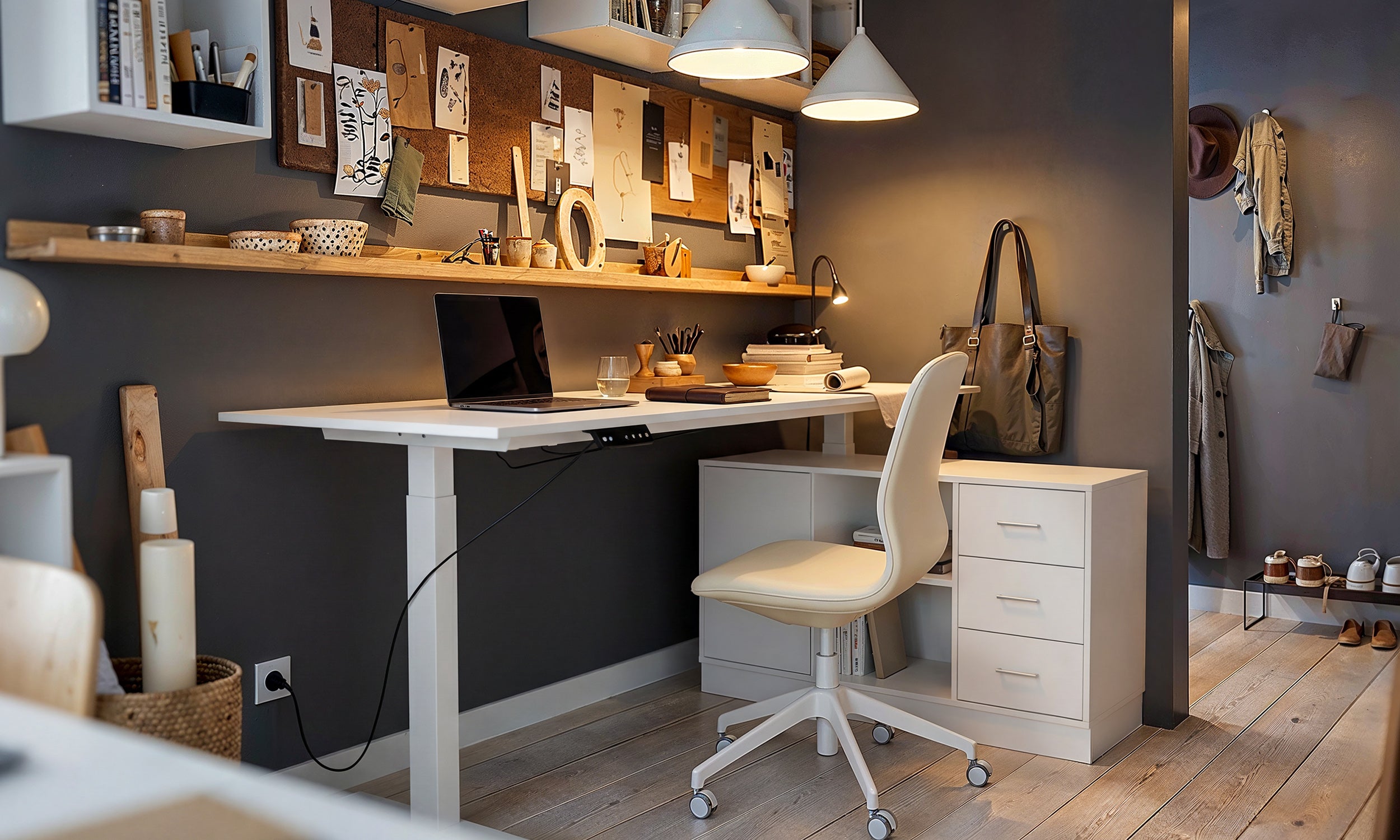
A successful motorized desk setup requires mindful cable routing and spatial planning to prevent wire strain during height travel. When planning your office layout, adopting comprehensive ergonomic sit-stand setup design principles ensures that equipment remains both visually organized and functionally sound.
Vertical Travel Clearance and Wall Spacing
Position the desk frame with a slight standoff distance from surrounding walls, shelving units, and neighboring desks. This gap prevents desktop edges from scuffing wall paint or catching on protruding trim during rapid elevation changes. Always observe the complete travel path from full seated position to maximum standing height before permanently fixing desktop accessories.
Routing Power Strips and Slack Cord Pathways
To avoid dangerous cord tension:
- Mount a multi-outlet surge protector directly underneath the desktop using an under-desk cable tray.
- Plug monitor power supplies, computer towers, and desk lamps into the mounted under-desk strip, leaving only a single heavy-duty main power feed running from the desk to the wall outlet.
- Provide sufficient slack in the main power cord to accommodate the desk at its highest standing elevation without tautness.
- Utilize flexible cable spines or hook-and-loop wire channels along the frame legs to guide cords smoothly without pinching.
Integrating Sit-Stand Desks with Complementary Office Storage
Maintaining a clutter-free work surface is essential for motorized desk longevity and daily workflow efficiency.
Mobile File Pedestals vs. Freestanding Cabinets
When selecting storage to pair with an adjustable desk, measure the underside clearance of the desk at its lowest seated height. Low-profile mobile pedestals on casters roll easily beneath the frame without blocking downward travel. Alternatively, placing stationary credenzas or lateral filing cabinets adjacent to the desk creates dedicated storage zones while leaving the lifting footprint entirely unobstructed. For multi-monitor workstations and heavier gear setups, choosing a wide format height adjustable standing desk provides expansive desktop room alongside structural stability.
Maintaining Uniform Desktop Load Distribution
Distribute heavy computer towers, multi-screen monitor mounts, and document organizers evenly across the desktop surface. Centering the mass over the main crossbar helps both motorized columns share the workload equally, reducing strain on motor gearboxes and promoting smooth, level travel over time.
Routine Maintenance and Long-Term Controller Care
Keep your sit-stand workstation operating reliably with periodic inspections. Every few months, verify that frame assembly bolts, crossbar fasteners, and desktop mounting screws remain firmly tightened, as subtle vibrations from daily height adjustments can gradually loosen hardware. Wipe down handset touch surfaces with a dry microfiber cloth to remove dust and oils, and inspect power harnesses for any signs of wear or pinching. By following standardized reset steps and maintaining a clear operational environment, your motorized desk will continue to provide seamless posture transitions for years to come.


Laisser un commentaire
Ce site est protégé par hCaptcha, et la Politique de confidentialité et les Conditions de service de hCaptcha s’appliquent.