






Configuring a dual-display workstation across a corner work surface provides an expansive footprint, but it also introduces unique geometric challenges. An effective l-shaped desk dual monitor setup requires balancing viewing angles, usable desktop depth, and unobstructed leg movement. By planning how your displays align across the corner apex or individual wings, you can build an organized, functional workspace tailored to your daily routine.
Workstation Geometry: Understanding the L-Shaped Desk Anatomy
An L-shaped workstation consists of three functional zones: the primary run, the return wing, and the inner corner apex. The primary run is typically the deeper, longer desktop section where users place central peripherals, while the return wing provides secondary surface area for reference materials, drafting, or secondary equipment. The inner corner apex serves as the transitional pivot point connecting both surfaces.
When designing an l shaped desk monitor setup, desk depth and rear clearance dictate how hardware can be mounted. Desks with open backs allow versatile clamp-on monitor arms, whereas models with structural modesty panels or built-in backboards require grommet mounts or freestanding bases. Identifying whether your work style prioritizes a centralized focal point or two distinct task zones will guide where your displays should rest.
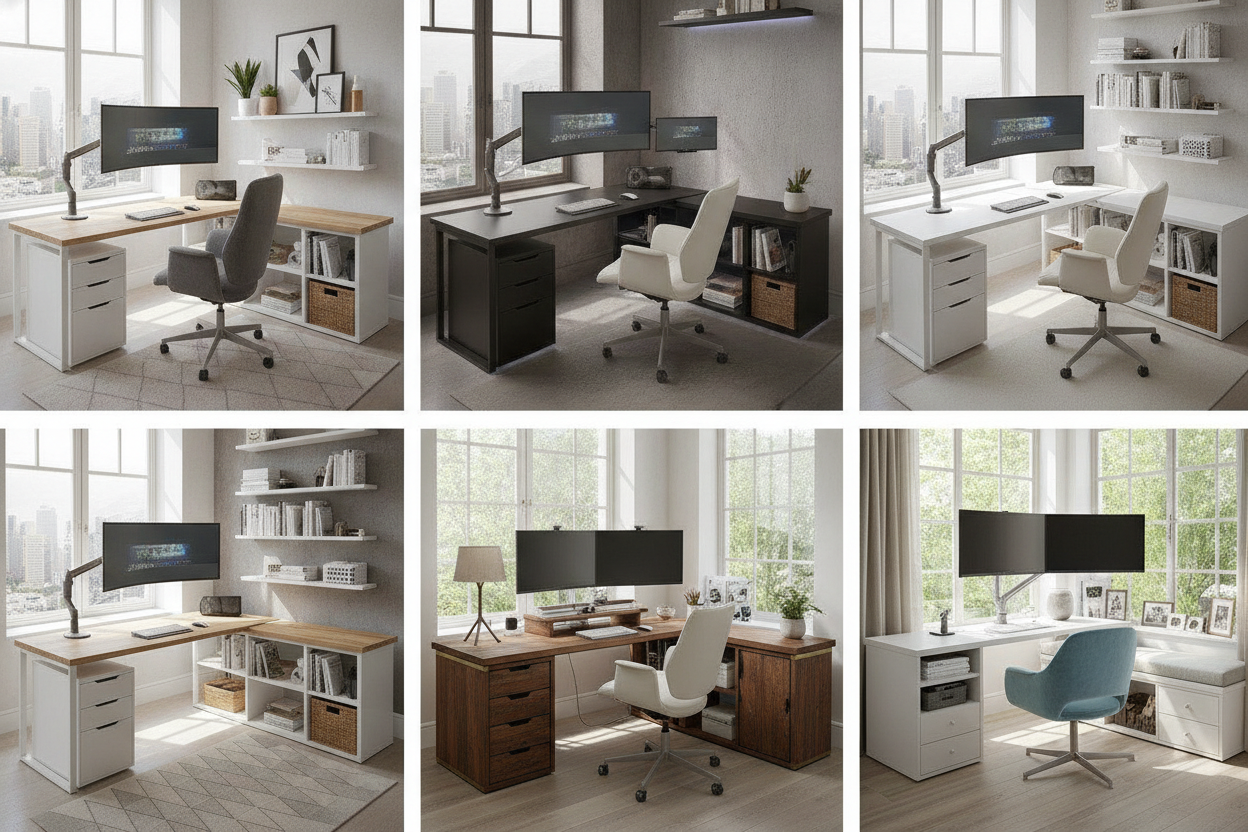
5 Dual-Monitor Layout Configurations for L-Shaped Desks
Choosing the right layout depends on screen size, workflow patterns, and whether you interact with both displays simultaneously or treat one as an auxiliary screen.
1. The Corner Apex Curved Array (Immersive Focal Point)
In this arrangement, both monitors sit directly across the diagonal corner junction, angled inward to form a gentle curve. This setup centers your chair in the apex, turning the deep, often underutilized corner area into the primary focal point. Both the left and right wings remain open for physical paperwork, secondary devices, or desktop lighting.
A dedicated corner piece like the 55 1 wide l shaped corner desk white offers the balanced desktop surface needed to support a centered screen array without sacrificing wing space.
2. The Main Wing Primary with Return Secondary (Task-Separated Workflow)
This layout places your primary monitor directly in front of you along the main desk run, while the secondary screen sits on the return wing angled toward your seating position. This asymmetric orientation works well for professionals who spend most of their time engaged in a main application while keeping email, project trackers, or reference documents on the side display.
By placing the main screen on the deeper desk surface, you maintain a comfortable focal distance and keep the corner junction open for shared desktop items like desktop speakers or task lamps.
3. The Stacked Vertical Array on the Main Desk (Compact Horizontal Footprint)
Mounting two monitors vertically on the primary desk wing frees up horizontal space on both the main run and the return wing. A stacked l desk monitor setup is especially practical for coders, editors, and analysts who review vertical documents or long feeds without turning their heads from side to side.
Because both screens occupy a narrow footprint on one section of the desk, the entire return wing remains clear for manual writing, sketching, or additional office equipment.
4. The Dedicated Dual-Zone Station (Work vs. Creative Split)
Instead of joining two monitors into a single visual span, this approach treats each desk wing as an independent workstation. One monitor sits on the primary desk for office tasks, while the second display resides on the return wing, paired with a dedicated input device, creative tablet, or auxiliary computer.
Users can transition between tasks simply by swiveling their chair, creating physical boundaries between work modes without cluttering a single visual field.
5. The Laptop Companion and Ultrawide Duo (Hybrid Mobile Setup)
For hybrid workers who dock a mobile computer, pairing an external monitor with an elevated laptop screen provides dual-display productivity with quick mobility. Placing the larger external monitor on the main wing and docking the laptop on an elevated stand on the return wing maintains clean sightlines. For an expanded breakdown of mobile docking ergonomics, explore our guide on designing the ultimate desk setup for laptop and monitor.
Ergonomics and Sightlines: Neck Comfort and Focal Distance
Proper screen positioning is critical to reducing physical fatigue during extended work sessions. When planning your l-shaped desk monitor placement, consider the following ergonomic principles:
- Viewing Height: Position monitors so the top third of each screen aligns near eye level when sitting upright, allowing your gaze to rest naturally downward.
- Focal Distance: Set displays roughly an arm's length away to maintain comfortable visual clarity without leaning forward.
- Neck Rotation: For setups with a primary and secondary display, place the primary screen centered to your body and angle the secondary screen inward to minimize sharp neck turns.
- Seating Alignment: Ensure your office chair swivels smoothly between the primary run and the return without colliding with desk supports or storage pedestals.
Mounting and Hardware Strategies: Monitor Arms, Risers, and Freestanding Bases
Selecting the right mounting method helps maximize desktop space across the 90-degree intersection:
- Dual-Arm Desk Clamps: Clamping arms to the rear edge suspends screens above the desktop, clearing surface area for keyboards and accessories. Verify desk overhang depth before choosing a clamp model.
- Grommet Mounts: If your desk features cable grommet holes or a closed back panel, grommet-style posts provide a stable foundation without requiring rear clearance behind the desk frame.
- Freestanding Desktop Risers: Solid wood or composite risers elevate screens while creating horizontal storage cubbies underneath for notebooks, docking hubs, and writing supplies.
Cable Routing and Surface Organization in Corner Workspaces
Managing cords across an L-shaped surface requires thoughtful routing to prevent cables from tangling around the inner corner leg. Running cords through under-desk cable management trays along the underside of both wings keeps power and display lines organized and hidden from view. Complementing your cable management with auxiliary storage, such as using a cabinet organizer office setup stop wasting your desk space, ensures extra power bricks and desktop peripherals stay neatly stowed.
Storage Integration: Balancing Pedestals, Drawers, and Leg Clearance
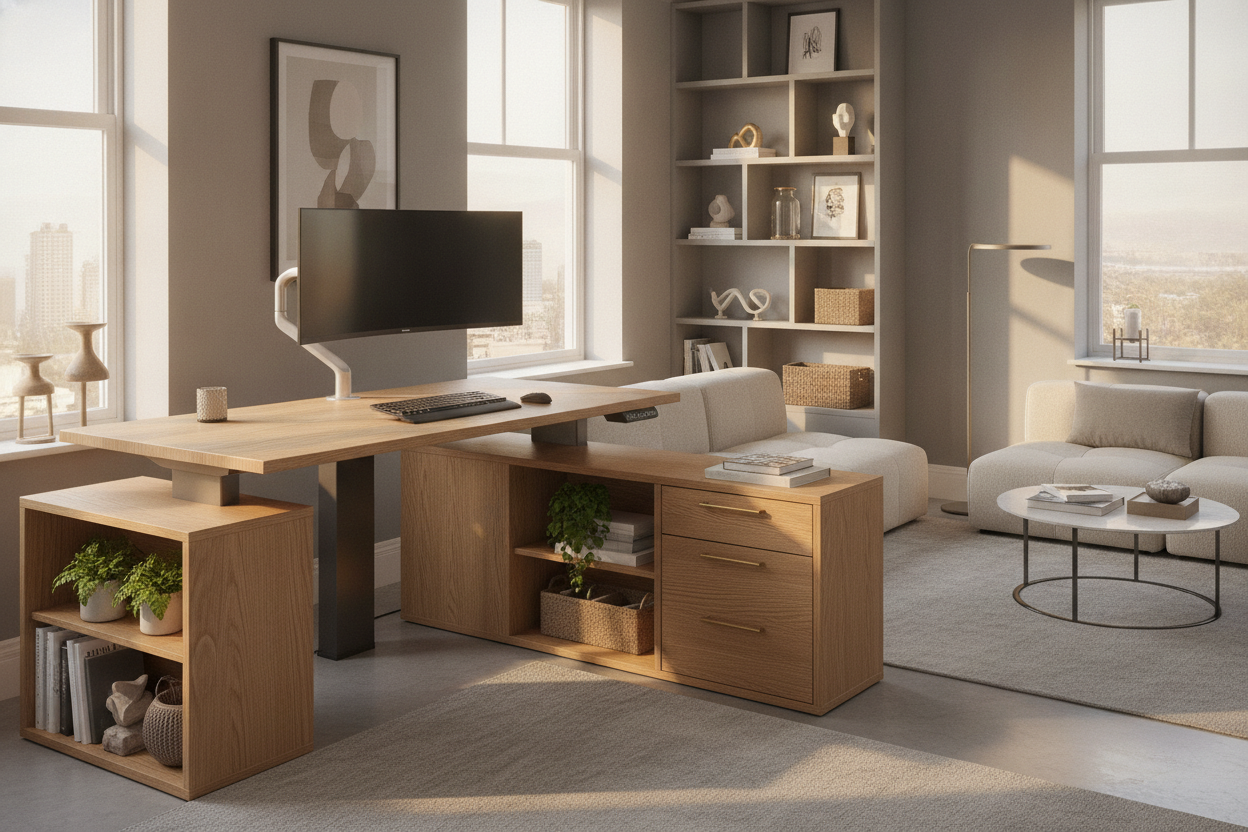
An L-shaped workspace should balance digital real estate with physical storage. Desks configured with integrated shelving, such as the 55 inch l shaped corner desk with storage, provide open compartments for computer towers and storage bins while leaving knee space open. For those who require enclosed organization for stationery and documents, choosing a model like the l shaped corner desk with drawers brown wood grain preserves clean lines while keeping essential files within arm's reach.
Decision Matrix: Choosing Your Ideal L-Shaped Dual Monitor Layout
To choose the best configuration for your workspace, consider your daily workflow requirements and physical room layout:
- Choose the Corner Apex Curved Array if you want an immersive panoramic view and have ample rear corner clearance.
- Choose the Main Wing Primary with Return Secondary if your workflow centers around a single primary application with occasional reference checking.
- Choose the Stacked Vertical Array if you work with extensive vertical code, feeds, or text and wish to keep the return wing entirely open.
- Choose the Dedicated Dual-Zone Station if you switch between two separate computer systems, such as a work laptop and a personal setup.
- Choose the Laptop Companion Duo if you frequently dock and undock a portable machine throughout the workweek.
By tailoring your monitor placement, mounting strategy, and storage choices to your daily habits, you can transform your corner desk into a balanced, comfortable, and productive work hub.

Leave a comment
This site is protected by hCaptcha and the hCaptcha Privacy Policy and Terms of Service apply.