











Multi-Display Workstation Architecture: Full Desk vs. Desktop Riser Systems
Configuring a multi-display workstation requires careful consideration of mechanical support, spatial footprint, and user movement patterns. Professionals routinely face a fundamental choice between investing in a dedicated full-frame motorized sit-to-stand desk or outfitting an existing static table with a dual-tier desktop converter. Both approaches support dynamic postural shifts, yet they interact differently with surrounding furniture, visual weight, and desktop utility.
Full-Frame Motorized Desks: Continuous Deck Space and High Load Stability
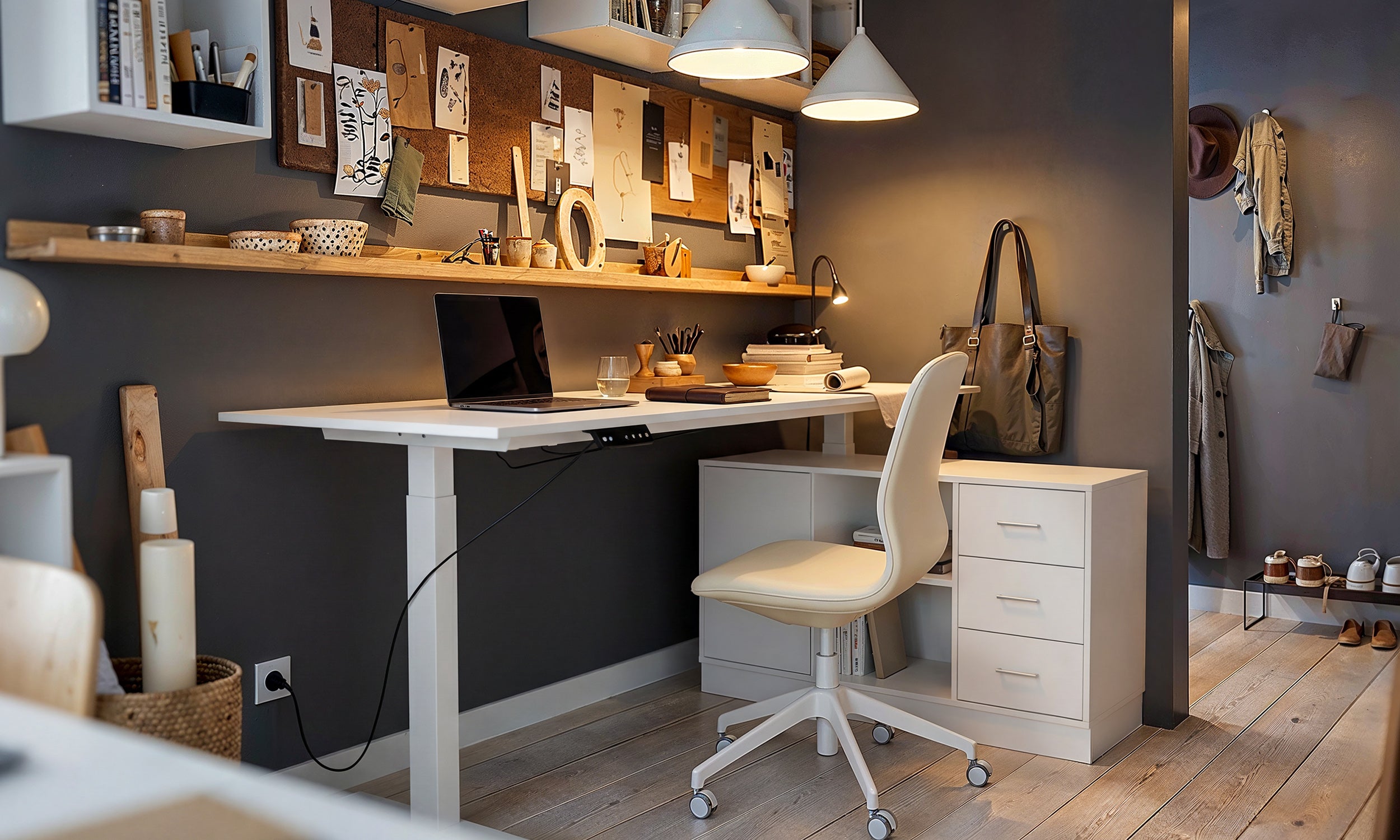
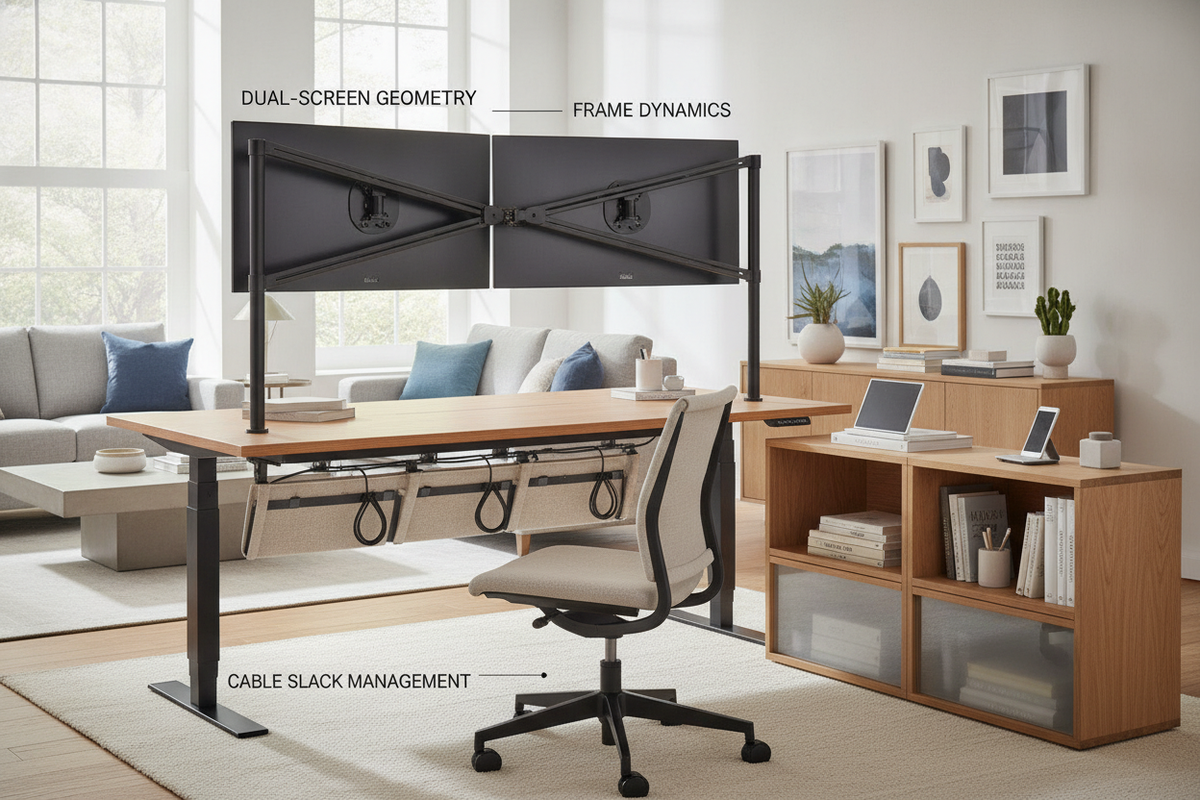
A full-frame motorized system elevates the entire work surface uniformly. This provides an uninterrupted horizontal plane where dual monitors, audio monitors, document holders, and primary input devices move together seamlessly. By utilizing dual-motor lifting columns synchronized through a central control unit, a wide height adjustable standing desk provides expansive lateral clearance, allowing users to position two full-sized screens side-by-side without encroaching on writing areas or task lighting.
Desktop Standing Desk Converters: Retrofitting Existing Fixed Furniture
Desktop standing desk risers offer a modular alternative by sitting directly atop an existing executive desk or built-in credenza. These units typically feature a pneumatic gas-spring or scissor-lift mechanism paired with a stepped upper platform for monitors and a lowered shelf for keyboards. While converters allow you to retain legacy desks, they concentrate significant weight onto a smaller footprint. When evaluating surface compatibility and display sizing on compact desks, it is critical to ensure that the supporting base desk possesses sufficient depth and structural density to avoid forward tipping during elevation.
Dimensional Footprints: Calculating Total Display Span and Clearance Tiers
To establish a clean visual and functional layout, measure the total combined width of your displays, including bezels and outer casings. A dual-screen arrangement angled slightly inward requires a wider perimeter arc than flat orientation. Compact setups benefit from streamlined frames, whereas expansive ultrawide arrays demand deeper desktop surfaces so the user can maintain an appropriate viewing distance without feeling crowded.
Kinetic Balance and Structural Physics for Dual-Screen Setups
Introducing two heavy displays to an adjustable surface fundamentally alters the center of gravity. As the workstation transitions through its elevation range, mechanical stresses concentrate along the rear edge and mounting points.
Cantilever Loads and Center of Gravity During Height Transitions
When dual displays are mounted on articulating arms, their mass is frequently suspended forward or backward relative to the desktop mounting point. This cantilever effect introduces rotational torque against the desktop core. On lower-density materials, excessive torque can cause surface deflection or localized cracking around clamp points. Distributing this load evenly across the frame ensures smooth mechanical travel and prevents strain on motor drives.
Dual Monitor Arm Clamping vs. Built-In Tiered Shelving
Heavy-duty C-clamps and through-desk grommet mounts represent the most common fastening methods for multi-monitor arms:
- C-Clamp Fastening: Slides over the rear edge of the desktop, requiring adequate rear clearance between the desk edge and adjacent walls or modesty panels.
- Grommet Through-Mounting: Uses a dedicated cable port or drilled opening, positioning the structural anchor further inward to balance weight distribution.
- Integrated Tiered Risers: Uses built-in shelving platforms, providing a wide base that avoids localized clamping stress altogether.
Frame Rigidity: Eliminating Monitor Wobble and Micro-Vibration
Minor vibrations created during rapid typing or desk contact are amplified across long monitor mounting poles. To minimize visual oscillation, prioritize desk frames engineered with reinforced crossbeams, telescopic dual-stage leg columns, and broad footpads. Ensuring firm mechanical connections at every joint prevents annoying screen tremors while working in standing mode.
Ergonomic Sightline Alignment and Tiered Work Surfaces
Proper screen geometry prevents cervical spine strain and upper back fatigue during extended work sessions. Adjusting both the elevation and focal angle of each panel ensures comfortable visual engagement.
Primary vs. Secondary Screen Focal Planes and Focal Distances
Multi-display setups typically follow one of two functional arrangements: an equal side-by-side layout or a primary-plus-auxiliary layout. In equal side-by-side configurations, both screens meet directly in front of the user's nose, angled inward to form a gentle concave semi-circle where focal distance remains uniform. In a primary-focused layout, the main display sits directly centered, while the secondary screen is placed to the left or right, angled toward the primary eye.
Dropped Keyboard Tier Mechanics and Forearm Angle Optimization
Maintaining neutral wrist alignment requires that input surfaces sit slightly lower than visual surfaces. Tiered converters achieve this through a dropped keyboard deck that keeps wrists straight and shoulders relaxed. On single-surface motorized desks, achieving the same ergonomic geometry often involves adding an adjustable under-desk keyboard tray or fine-tuning the overall deck elevation to match resting elbow height.
Stand Up Desk Configurations for Two Monitors and a Laptop
Integrating a laptop into a dual-screen array creates a versatile three-screen environment. When coordinating a complex desk setup for laptop and monitor, place the laptop on an elevated arm or angled platform alongside the main screens. Aligning the top edges of all three displays maintains a continuous horizontal visual scan, reducing repetitive vertical head movements.
Dynamic Cable Architecture and Power Slack Management
As a standing desk ascends and descends, connected wiring experiences continuous movement. Inadequate cable management risks snagging wires, disconnecting delicate display inputs, or damaging ports.
Multi-Display Power and Video Harness Routing
Dual-monitor workstations generate multiple cords, including power bricks, display cables, USB uplinks, and peripheral leads. Consolidate these lines into organized bundles using braided sleeves or hook-and-loop wraps. Grouping signal cables separately from high-draw power cables helps minimize electromagnetic interference while maintaining a clean aesthetic profile.
Articulating Cable Spines vs. Under-Desk Wire Trays
To safely bridge the gap between a moving desktop and fixed wall outlets, use dedicated wire routing accessories:
- Under-Desk Cable Trays: Deep horizontal raceways fastened beneath the desktop surface house power strips, excess cord lengths, and docking stations.
- Articulating Cable Spines: Flexible, segmented tracks anchored from the underside of the desk to the floor base, guiding wires smoothly along the vertical movement arc.
- Adhesive Conduit Tracks: Discreet channels running along desk legs to keep single power leads flush with the steel framework.
Preventing Cable Pinch and Port Tension Across the Full Elevation Arc
Before finalizing cable ties, execute a manual height calibration cycle. Raise the desk to its absolute maximum standing limit and confirm that all cords maintain gentle slack without pulling tight against video ports. Next, lower the desk to its lowest seated point to verify that drooping loops do not get pinched within lifting leg telescoping joints or compressed against underlying storage units.
Surrounding Storage Architecture and Perimeter Room Synergy
A clutter-free desktop is essential for concentration and fluid movement. Because kinetic sit-stand surfaces must remain free from excessive static clutter, coordinating surrounding perimeter storage creates a balanced, highly functional workspace.
Clearing the Motion Envelope: Decoupling Storage from Kinetic Surfaces
Keeping heavy reference materials, archival files, and supplementary hardware off the active elevating desktop reduces the mechanical workload on lifting motors and simplifies weight management. Decoupling storage from the moving desk allows the workstation to transition effortlessly between heights while preserving organized access to essential tools.
Adjacent Credenzas, Low Cabinets, and Adjustable Media Consoles
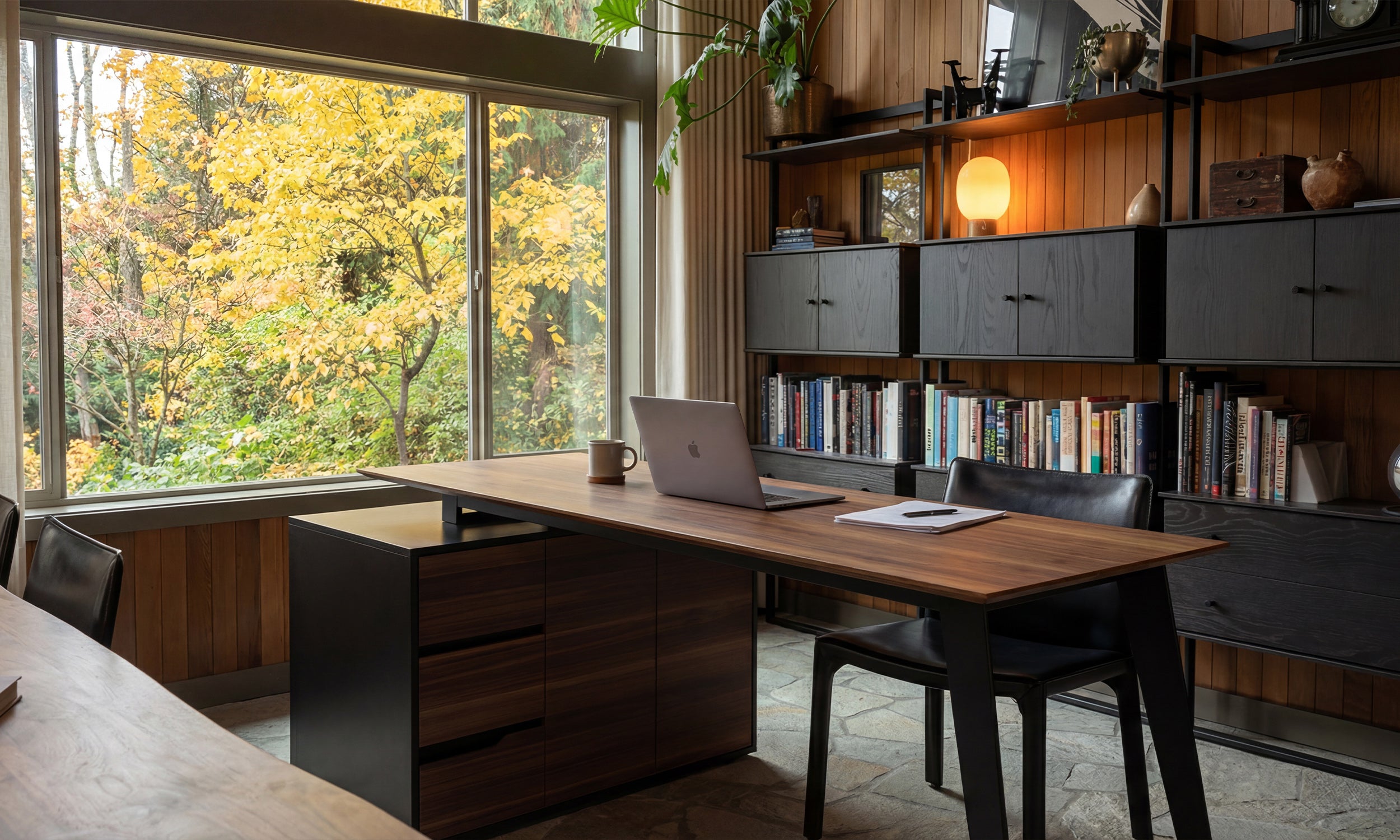
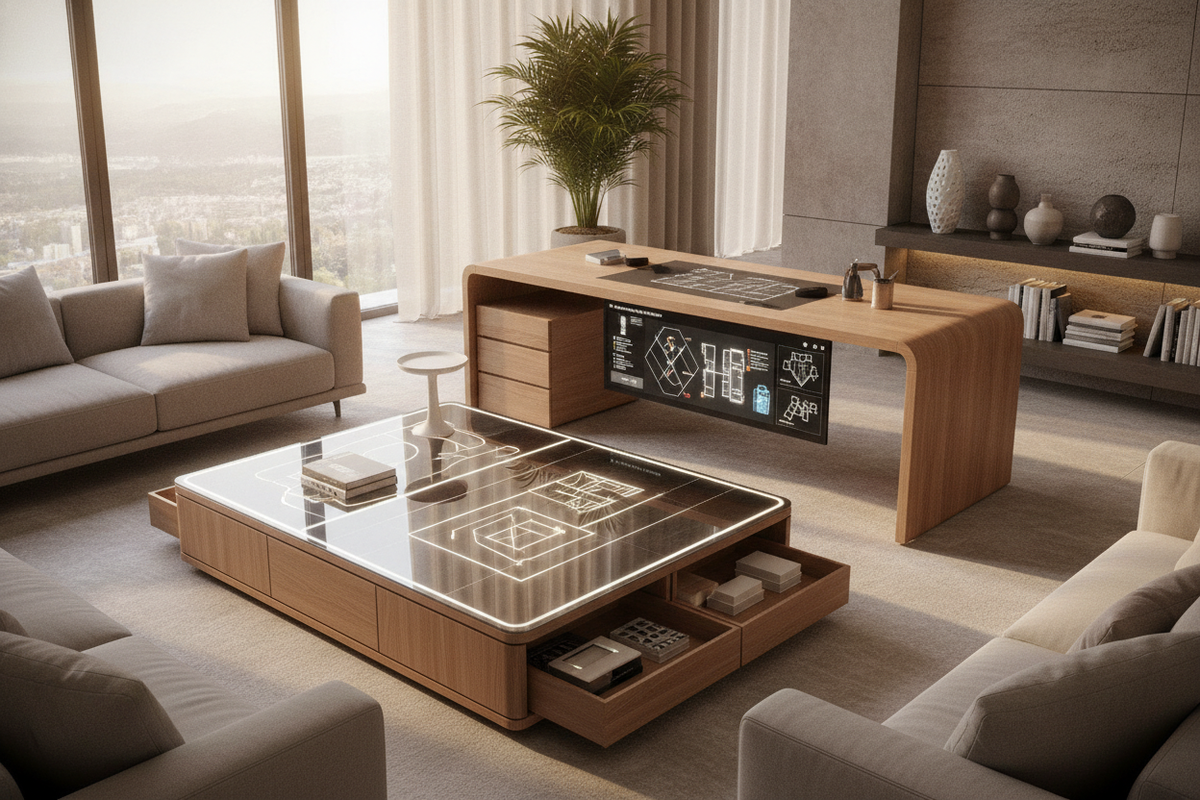
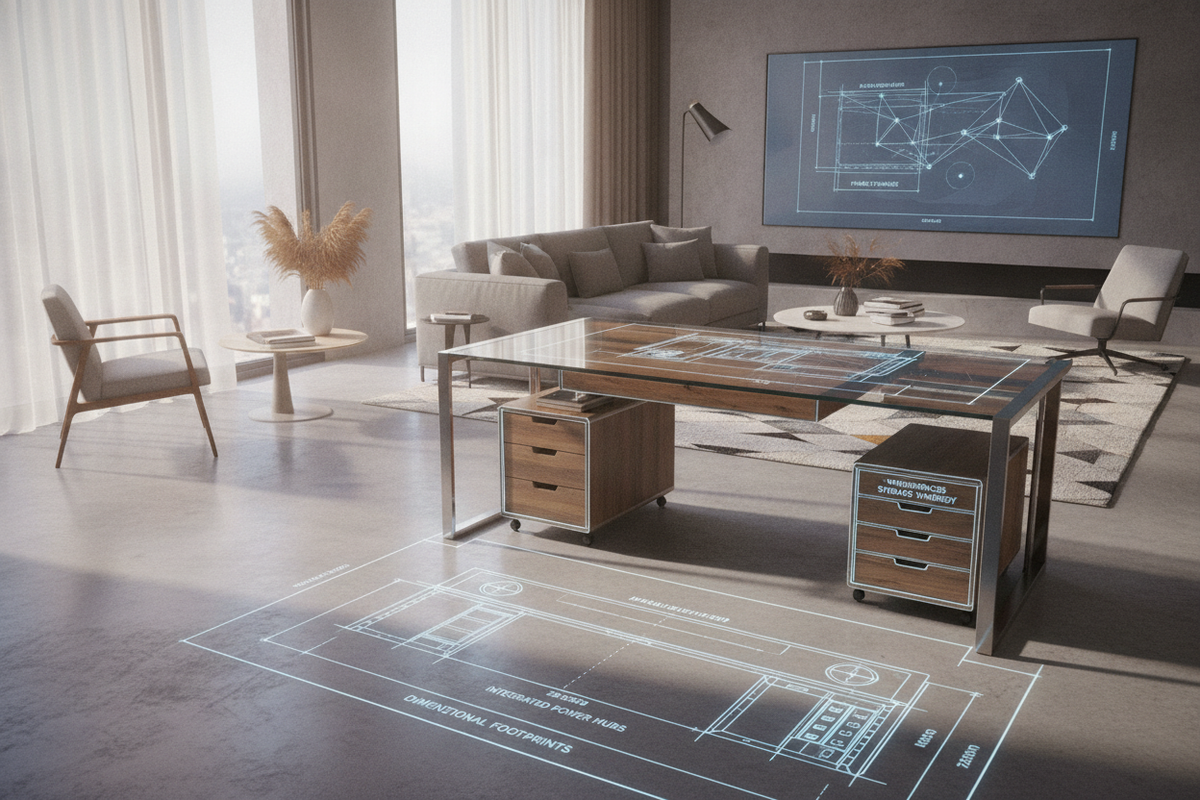
Positioning modular, stationary storage parallel or perpendicular to your sit-stand desk creates an efficient working cockpit. Utilizing adjustable shelf storage units allows you to store office equipment, paper trays, and charging docks at convenient reaching heights without obstructing desk movement. For shared home offices or multi-use media rooms, a dedicated side storage console with dual cabinets provides ample enclosed capacity to conceal hardware accessories, networking routers, and office supplies, maintaining an uncluttered visual perimeter.
Vertical Wall Organization and Clean Perimeter Spatial Flow
Maximize your room's vertical plane by incorporating floating wall shelves and modular pinboards positioned clear of the desk's elevation path. Maintain an intentional clearance gap between the moving desk edges and surrounding wall cabinetry to ensure safety throughout the entire kinetic range.
Selection Matrix and Practical Setup Decision Framework
Selecting the ideal multi-monitor standing desk involves evaluating spatial constraints, construction durability, and long-term maintenance requirements.
Assessing Work Surface Thickness, Base Materials, and Finish Durability
When selecting a desktop, prioritize thick, engineered wood cores or dense laminate surfaces capable of withstanding the concentrated pressure of heavy clamp-on monitor arms. Powder-coated steel frames provide superior lateral rigidity, while scratch-resistant melamine or textured veneer finishes protect high-contact working zones against daily wear.
Assembly Sequencing and Calibration Protocols
Follow a systematic sequence when building a dual-display workstation:
- Assemble the frame and base structure upside-down on a soft, protective surface, ensuring all structural bolts are hand-tightened before final torqueing.
- Rotate the desk onto its feet with assistance, leveling the base using the adjustable glides.
- Mount the under-desk power strip and wire management raceways before loading computing hardware.
- Attach monitor arms firmly, securing the primary display first followed by the secondary screen.
- Route all cables through flexible spines, confirming adequate slack at maximum height.
Maintenance, Clamp Tightening, and Long-Term Stability Checklist
Periodically inspect your workstation to ensure lasting reliability. Check monitor arm clamps every few months to confirm that vibration has not loosened the mounting brackets. Wipe down lifting columns to remove dust buildup, verify that all power connections remain firmly seated, and adjust leveling feet if room flooring shifts over time.

Leave a comment
This site is protected by hCaptcha and the hCaptcha Privacy Policy and Terms of Service apply.