














Finding the right balance while working long hours at a computer comes down to physical awareness and thoughtful workstation setup. Many professionals spend countless hours seated in front of screens, only to finish the day with stiff muscles and aching backs. Establishing a daily posture routine helps sustain focus and eases physical strain across demanding workweeks.
What Is the Best Posture for Desk Job Comfort?
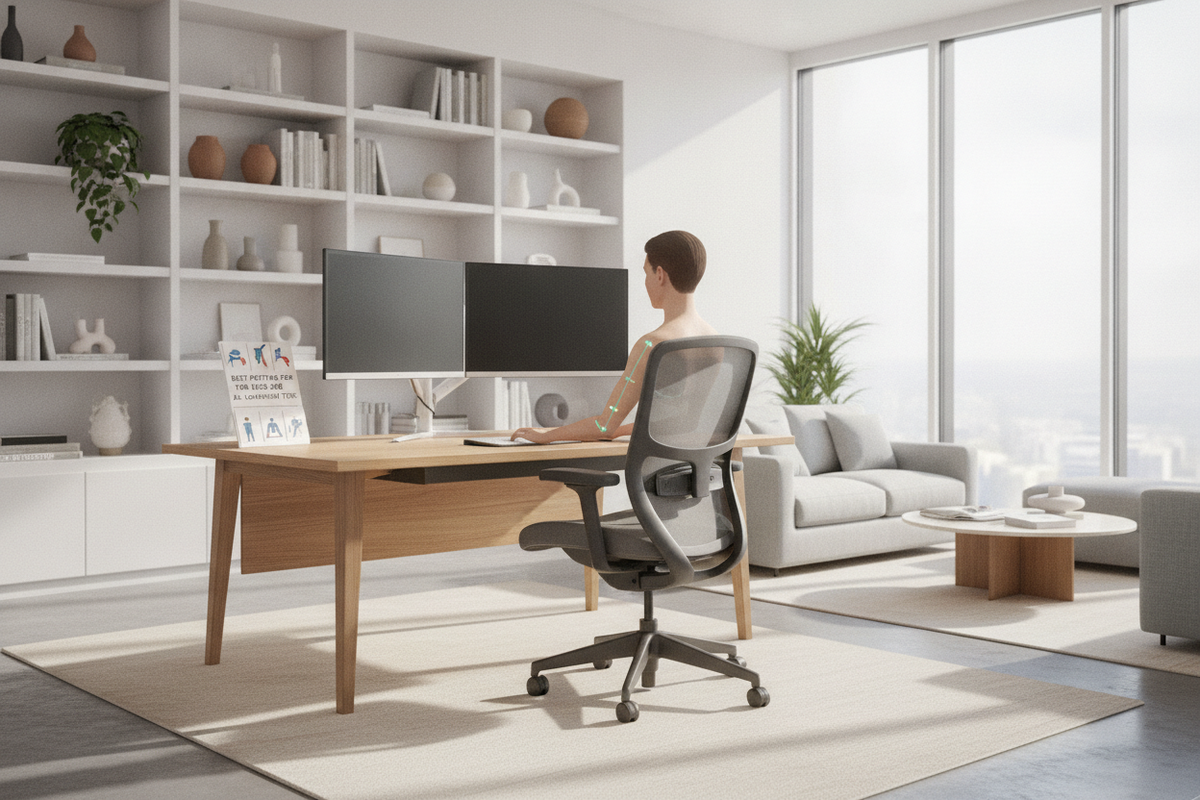
The foundation of balanced sitting is maintaining a neutral spine position. Instead of forcing an unnaturally rigid stance, good posture respects the natural curves of the spine. When your pelvis, ribcage, and skull stay stacked over one another, your muscles and spinal ligaments share the physical workload evenly rather than straining under localized tension.
A helpful concept in office ergonomics is the right-angle principle, often called the 90-90-90 guideline. In an ideal seated position, your hips, knees, and elbows each rest near right angles:
- Hips: Positioned all the way back in the chair so the backrest can support the natural lumbar curve.
- Knees: Bent comfortably level with or slightly below the hips to maintain smooth leg circulation.
- Elbows: Hanging naturally near the sides of your torso, keeping upper arms vertical and forearms horizontal.
Keeping your shoulders relaxed is another core element of proper sitting posture. When work pressures rise, shoulders often creep upward toward the ears. Checking in periodically to drop the shoulders helps release tension across the trapezius and upper back muscles.
How to Sit Better at Desk Workstations: Keep Feet Flat
Aligning your body begins from the ground upward. Your feet serve as the primary anchor for pelvic alignment and lower spine support. Leaving your legs dangling or tucking your ankles beneath the chair seat pulls the pelvis into an unhealthy tilt, flattening the natural curves of your lumbar region.
Make sure your feet rest flat on the floor. If your desk height requires raising your office chair so high that your feet hover, introduce a sturdy footrest beneath your workstation. Supporting the soles of your feet stabilizes the pelvis and distributes your seated weight across the entire chair cushion.
Next, adjust the seat pan depth. When sitting all the way back against the lumbar support, there should be a small gap—roughly two to three fingers wide—between the edge of the seat cushion and the back of your knees. This spacing prevents pressure behind the knees and allows your legs to bend naturally. If your current chair lacks built-in lumbar contours, placing a small rolled up towel behind your lower spine provides convenient lower back reinforcement. For additional physical alignment techniques, consult our sit desk posture guide.
Computer Monitor Setup: Avoid Forward Head Posture
Neck discomfort is one of the most frequent complaints among desk workers. The human head weighs a surprising amount, and whenever your head moves forward past your shoulders, your cervical spine bears an exaggerated mechanical load. Over extended periods, this forward head posture places unnecessary stress on the neck and upper back.
Setting up your computer monitor correctly is the most effective way to eliminate neck strain:
- Viewing Height: Position the top third of the screen roughly at eye level. This placement lets your eyes scan the display downward at a slight angle without requiring you to bend your neck forward.
- Viewing Distance: Keep the display roughly an arm's length away. If you have to lean forward or squint to read fine print, increase the text scaling on your computer rather than sliding your upper body toward the display.
- Laptop Positioning: Working directly on a compact notebook forces your head down. Raising the device on an elevated laptop stand and pairing it with an external keyboard keeps the screen at eye level while preserving natural wrist angles.
Arm, Keyboard, and Desk Height to Prevent Wrist Strain
Workstation surface height dictates how your arms, wrists, and shoulders interact with input devices. Typing or mousing on a surface that sits too high forces your shoulders to shrug, while working at a desk that sits too low causes you to slouch forward over your work.
Aim for a desk height where your forearms rest parallel to the desktop with your upper arms resting easily beside your ribcage. To prevent wrist strain, keep your wrists in a neutral position while typing—avoiding steep upward or downward bending. Float your hands gently over the keys, using arm rests purely for intermediate pauses rather than resting your wrists hard against hard surfaces while actively entering text.
Keep your keyboard and mouse close to the front edge of your work surface so you do not have to stretch your arms outward to reach them. For workers outfitting specialized setups or smaller home spaces, reading our desk better posture guide can help you adapt standard furniture heights to match your natural resting elbow elevation.
Recognizing Signs of Poor Desk Posture
Even with an ergonomic setup, fatigue sets in over long stretches of concentration. Learning to identify physical warning signs lets you reset your body before stiffness turns into lasting discomfort. Watch out for these four signs of poor posture:
- Slouching and Rounded Shoulders: As the day progresses, the chest collapses inward, pulling the shoulder blades apart and causing the upper back to hunch.
- Leaning Forward at the Hips: Creeping toward the display flattens the lower spine and creates concentrated pressure in the hip flexors.
- Crossed or Tucked Legs: Resting one foot beneath the thigh or crossing legs at the knee creates an uneven pelvic tilt that twists the lower vertebrae.
- Restricted Breathing: Slumped seated postures compress the diaphragm, making breaths shallow and reducing physical energy.
When you notice any of these habits, take a moment to sit correctly: plant both feet, draw your shoulders down, and align your ears directly over your shoulders.
Movement Habits to Combat Prolonged Sitting
Even the best desk posture becomes stressful if you remain in the exact same position for hours without moving. The human body is designed for dynamic motion, and alternating between positions is vital for healthy office ergonomics.
Incorporate small movement rituals throughout your work routine. Simple shoulder shrugs, gentle neck rotations, and standing chest openers can be performed directly next to your desk every thirty to sixty minutes. These brief micro-breaks encourage circulation and counteract muscle fatigue caused by prolonged sitting.
Alternating between sitting and standing is another practical strategy. A common standing desk approach is the 20-8-2 routine: spend twenty minutes sitting in good posture, stand for eight minutes, and take two minutes to walk or stretch. For step-by-step layout considerations and daily pacing advice, review our better sit desk guide.
Frequently Asked Questions About Work Desk Posture
Can I correct years of poor posture habits?
Yes. While long-term slouching tightens muscles and weakens posture-supporting tissues, steady daily attention can retrain your body. Consistent workstation adjustments, frequent posture resets, and regular movement throughout the day help your spine readapt to balanced alignment.
What is the best way to maintain posture when working on a laptop?
Using a laptop by itself almost always forces you to compromise between screen height and keyboard height. The simplest solution is using a laptop riser to lift the screen to eye level and plugging in an external keyboard and mouse on the desktop below. This setup separates viewing height from hand position, keeping your head upright and wrists neutral.
How do height-adjustable desks help support posture?
An adjustable workspace allows you to tailor surface heights precisely to your seated elbow height rather than adapting your body to fixed furniture dimensions. It also makes shifting between seated focus and standing posture seamless throughout the day. Exploring an ergonomic sit stand desk can give you flexible control over your workday positioning.


Leave a comment
This site is protected by hCaptcha and the hCaptcha Privacy Policy and Terms of Service apply.