












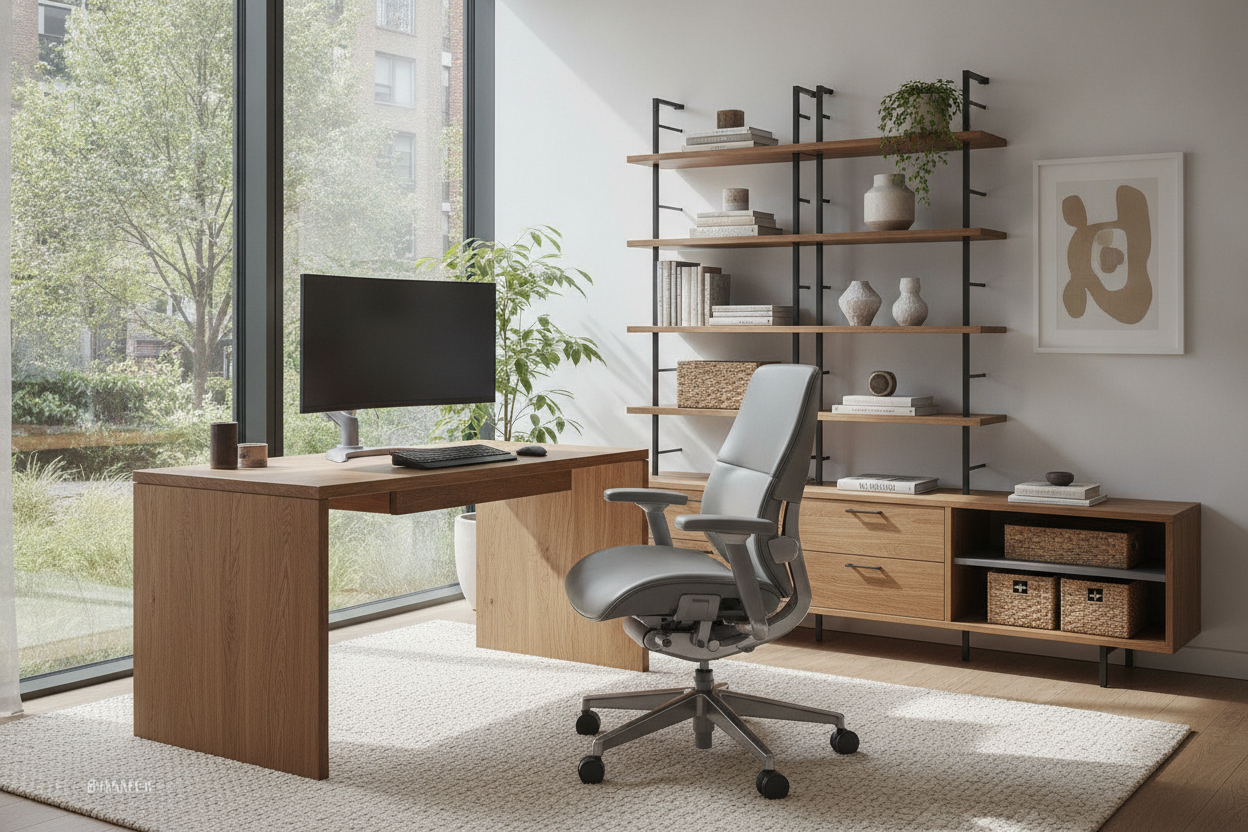
Achieving sustainable comfort throughout long working sessions involves more than simply reminding yourself to sit upright. True physical alignment relies on the deliberate spatial relationship between your desk surface, seating setup, visual display, and surrounding storage elements. When workstation furniture is configured around your body's natural resting mechanics, maintaining an upright, relaxed position becomes intuitive rather than an exhausting effort.
The Geometry of Neutral Posture: Foundations for All-Day Desk Comfort
Neutral posture describes a balanced state where joints rest in low-stress positions, reducing unnecessary muscle engagement and pressure on spinal structures. Creating this baseline requires understanding how major contact points interact across the workstation.
Understanding the 90-to-100 Degree Alignment Triangle
A functional sitting posture centers around open angles across three pivotal hinge points: the elbows, hips, and knees. Rather than locking limbs into rigid right angles, a gentle opening between ninety and one hundred degrees allows blood flow to remain unhindered and avoids pinching soft tissues along the posterior chain.
- Elbow placement: Forearms should rest parallel to the desktop or slope downward slightly, with wrists remaining flat rather than bent upward or downward.
- Hip angle: Thighs should remain level with or angle gently downward from the pelvis, helping maintain the natural inward curve of the lower lumbar spine.
- Knee position: Feet must plant firmly on the floor or an angled footrest, leaving space between the front edge of the seat cushion and the back of your calves.
Visual Focal Planes and Neck Strain Mitigation
Your head naturally follows your gaze. When screens are positioned too low or too far away, the upper torso compensates by slumping forward. Positioning the top third of your computer display at eye level allows the neck to stay balanced over the shoulders. Viewing distances should allow effortless reading of standard interface typography without leaning forward or tilting the chin upward.
Desk Dimensions and Clearance Frameworks for Optimal Sitting Posture
The physical dimensions of your workstation establish the physical boundaries for how your body can move and rest during the workday. Exploring options across a dedicated computer desk collection helps identify frames that offer both sufficient desktop depth and unobstructed lower clearance.
Surface Depth and Forearm Support Zones
A desk surface requires adequate depth to house input peripherals and display hardware without crowding your arms. Generous surface depth allows you to rest forearms gently on the desktop during keyboard and trackpad operations, preventing the shoulder blades from carrying the constant weight of extended arms. Shallow desks force keyboards toward the front lip, resulting in unsupported wrists and shoulder fatigue.
Under-Desk Knee and Foot Clearance Requirements
Legroom is essential for pelvic stability. If the space under the desk is constrained by thick front aprons, low crossbars, or cramped storage compartments, your legs are forced into restricted positions, such as tucking ankles beneath the chair or crossing knees. Unobstructed lower chassis dimensions allow you to pull your task chair close to the primary input zone while keeping your feet flat and hips neutral.
Reach Zones and Workflow Layout: Preventing Overextension Strain
Ergonomic desk alignment extends beyond stationary sitting into how you interact with daily tools. Organizing desk accessories and storage into designated zones prevents repeated twisting, leaning, and overreaching.
Primary Reach Arc: Input Devices and Daily Essentials
The primary reach zone encompasses the semi-circular arc created by sweeping your hands across the desktop while keeping your upper arms relaxed at your sides. Your keyboard, mouse, and most frequently touched items must live exclusively inside this perimeter. Keeping daily essentials within this sweep eliminates persistent shoulder elevation and torso rotation.
Secondary and Tertiary Storage Reach Zones
Secondary items—such as notepads, reference documents, and audio accessories—should sit within an arm's length without requiring you to bend forward at the waist. Tertiary tools, archival files, and spare office supplies are best housed in integrated drawers or side cabinets. For unique home layouts, learning from a computer desk guide on concealed cabinetry can help you integrate compact secondary storage without compromising open seating access.
Selecting Desk Architectures that Support Long-Duration Posture
Different desk designs offer distinct structural benefits for organizing equipment and maintaining physical alignment throughout the day.
Solid Wood and Minimalist Desks for Dedicated Task Alignment
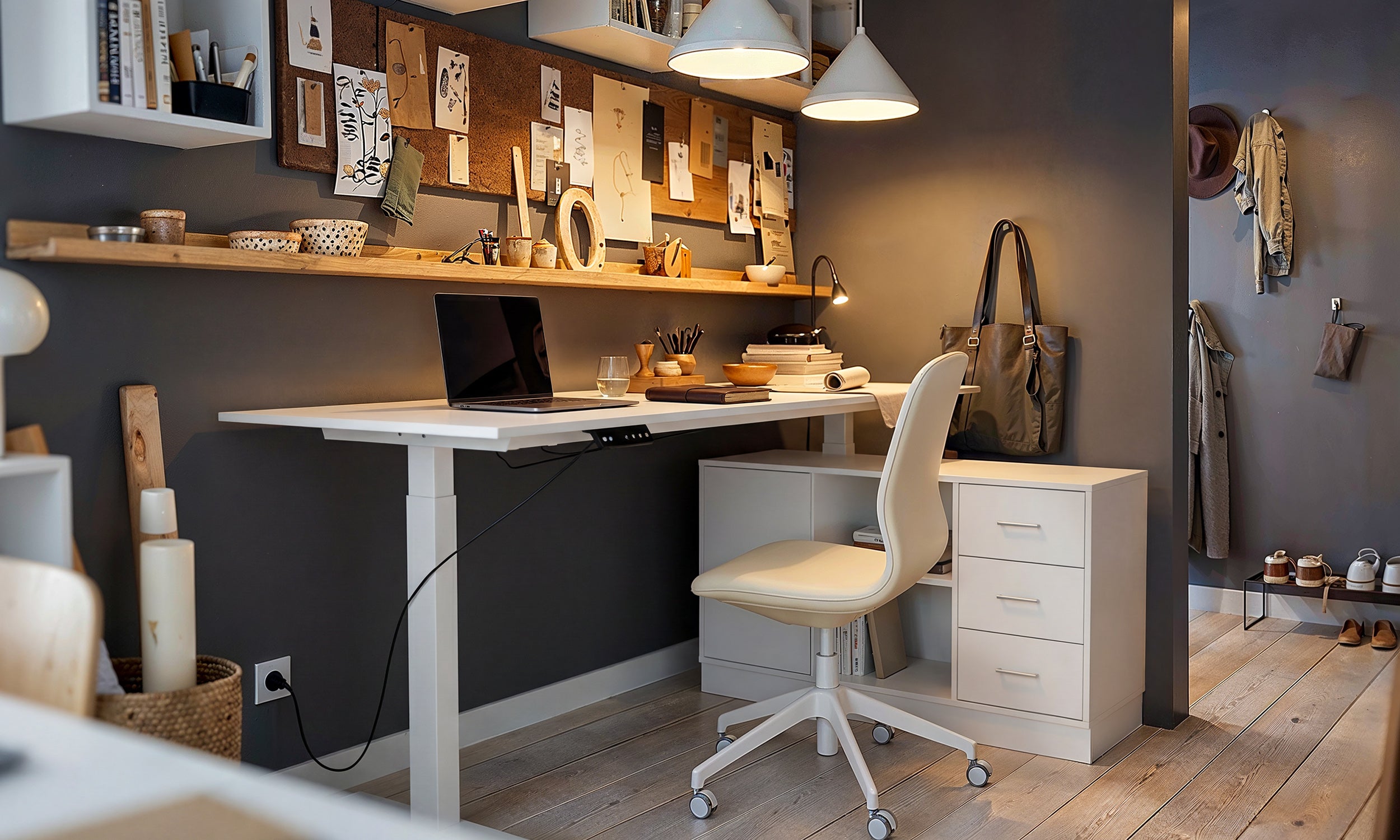
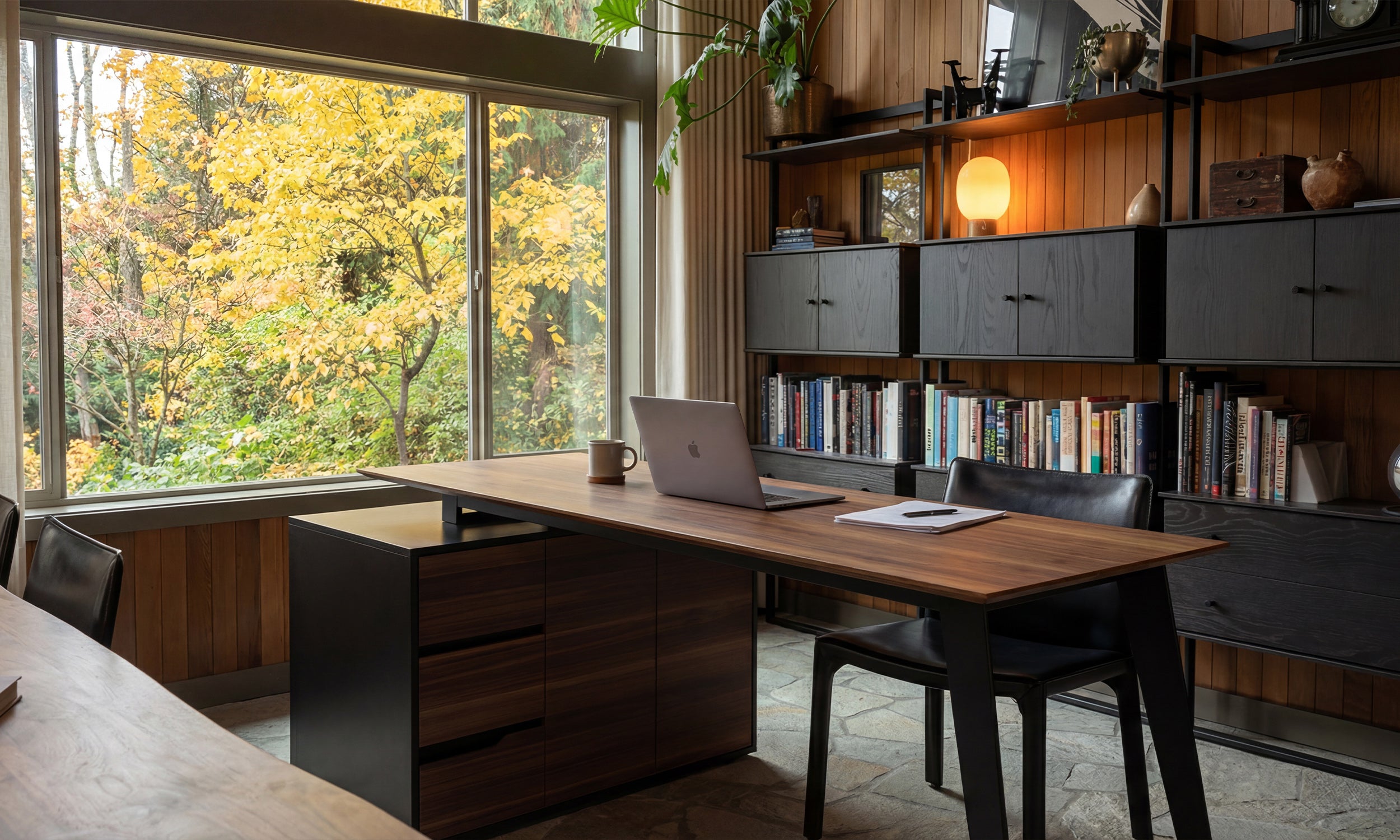
Straight-front writing desks with clean profiles provide rigid, stable surfaces that minimize distracting vibrations while typing. Selecting a durable desk computer product built from solid wood ensures consistent structural support across the primary work zone. The open under-desk chassis of minimalist designs facilitates unrestricted leg movement, allowing seamless transitions between active typing and focused reading.
Corner and L-Shaped Desks for Multi-Monitor Ergonomic Pivots
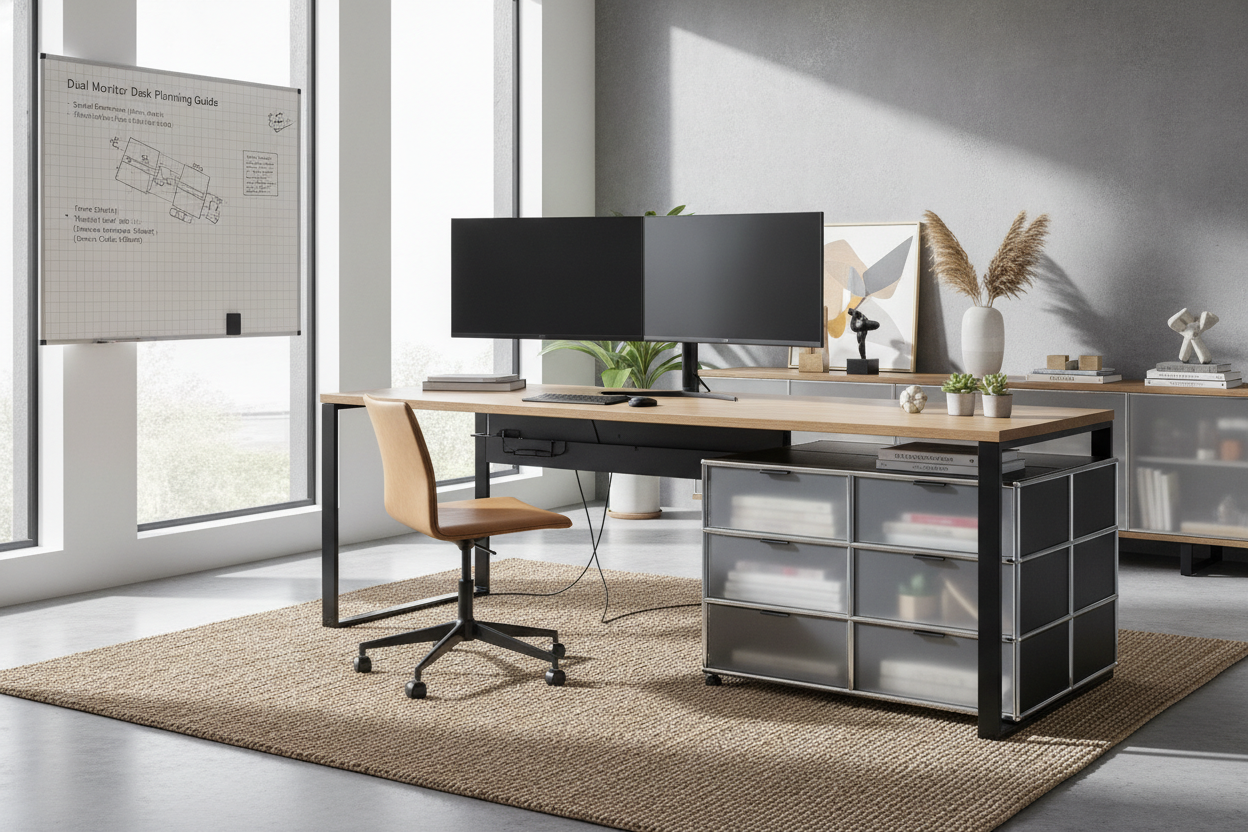
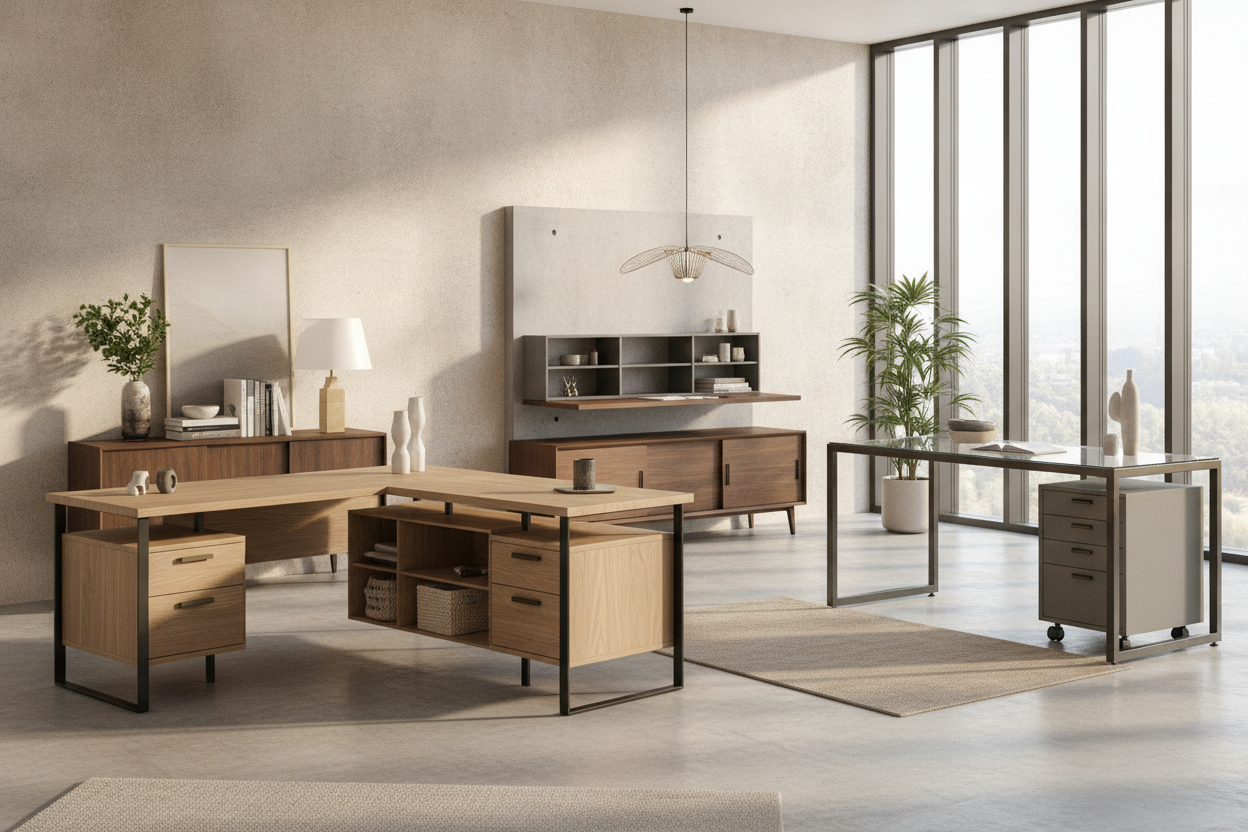
Professionals managing multiple screens benefit from wrap-around desks that allow smooth pivoting rather than sharp neck turns. Integrating a spacious computer desk product with an L-shaped configuration provides a central cockpit for primary tasks alongside dedicated wings for reference materials and peripheral devices. Swiveling your entire chair toward secondary screens preserves neutral neck and spine alignment.
Common Posture Pitfalls and Workstation Layout Mistakes
Even with high-quality office furniture, subtle layout oversights can disrupt ergonomic comfort. Identifying these common errors helps you make immediate adjustments:
- Crowded lower legroom: Storing cpu towers, trash bins, or shipping boxes in the knee well prevents the chair from tucking in close, forcing awkward reaches toward the keyboard.
- Excessive reach depths: Pushing monitors too far back on deep surfaces frequently causes users to crane their necks forward to read small text.
- Unmatched desk and armrest heights: When chair armrests collide with the desktop, users sit too far away; adjust armrest heights so they slide neatly beneath or align flush with the work surface.
- Asymmetric screen orientation: Placing primary windows on secondary side monitors forces sustained cervical rotation; keep primary workflows centered squarely in front of your keyboard.
For more architectural insights on spatial layout oversights, consulting a dedicated computer desk guide helps streamline your home office planning.
Daily Posture Pacing and Workstation Maintenance Checklist
Ergonomic alignment is a dynamic practice that benefits from brief periodic checks. Use this simple diagnostic checklist to recalibrate your setup throughout the workday:
- Feet and Base: Verify that both feet rest firmly supported, with knees positioned slightly lower than or level with hips.
- Pelvis and Back: Check that your lower back rests against the lumbar contour of your chair backrest without slouching.
- Shoulders and Arms: Confirm that shoulders remain relaxed, forearms rest parallel to the desktop, and elbows stay near the torso.
- Gaze and Display: Ensure your line of sight hits the upper portion of the monitor without tilting your chin up or down.
- Clear Pathways: Periodically clear paperwork and secondary accessories from the primary reach arc to maintain open room for natural hand movements.

Leave a comment
This site is protected by hCaptcha and the hCaptcha Privacy Policy and Terms of Service apply.