















Principles of Correct Office Ergonomics in Modern Workspaces
Establishing correct office ergonomics requires viewing your workspace as a cohesive system rather than a random collection of furniture items. In home offices and corporate suites alike, daily comfort depends on how individual elements—from the base of your task chair to the height of your writing surface—coordinate with your natural seated posture. When furniture components work in harmony, they encourage an effortless, neutral orientation that accommodates your daily tasks without demanding constant physical adjustment.
Many people attempt to address workstation discomfort by acquiring isolated accessories without evaluating the underlying layout. A dedicated monitor mount or premium keyboard tray cannot compensate for a desk set at an awkward height or an office chair adjusted incorrectly for your frame. True ergonomic planning approaches the workstation holistically, examining the interplay between your body dimensions, work habits, and furniture proportions.
Adopting proper office ergonomics does not mean remaining locked in a single, rigid posture throughout the day. Instead, it provides a stable, balanced baseline that supports fluid movement, clear sightlines, and unencumbered task reach. By treating your desk, seating, and storage as interconnected parts of an intentional environment, you can build a workstation that supports sustained focus throughout extended working sessions.
Foundational Seating: Establishing Proper Posture and Base Support
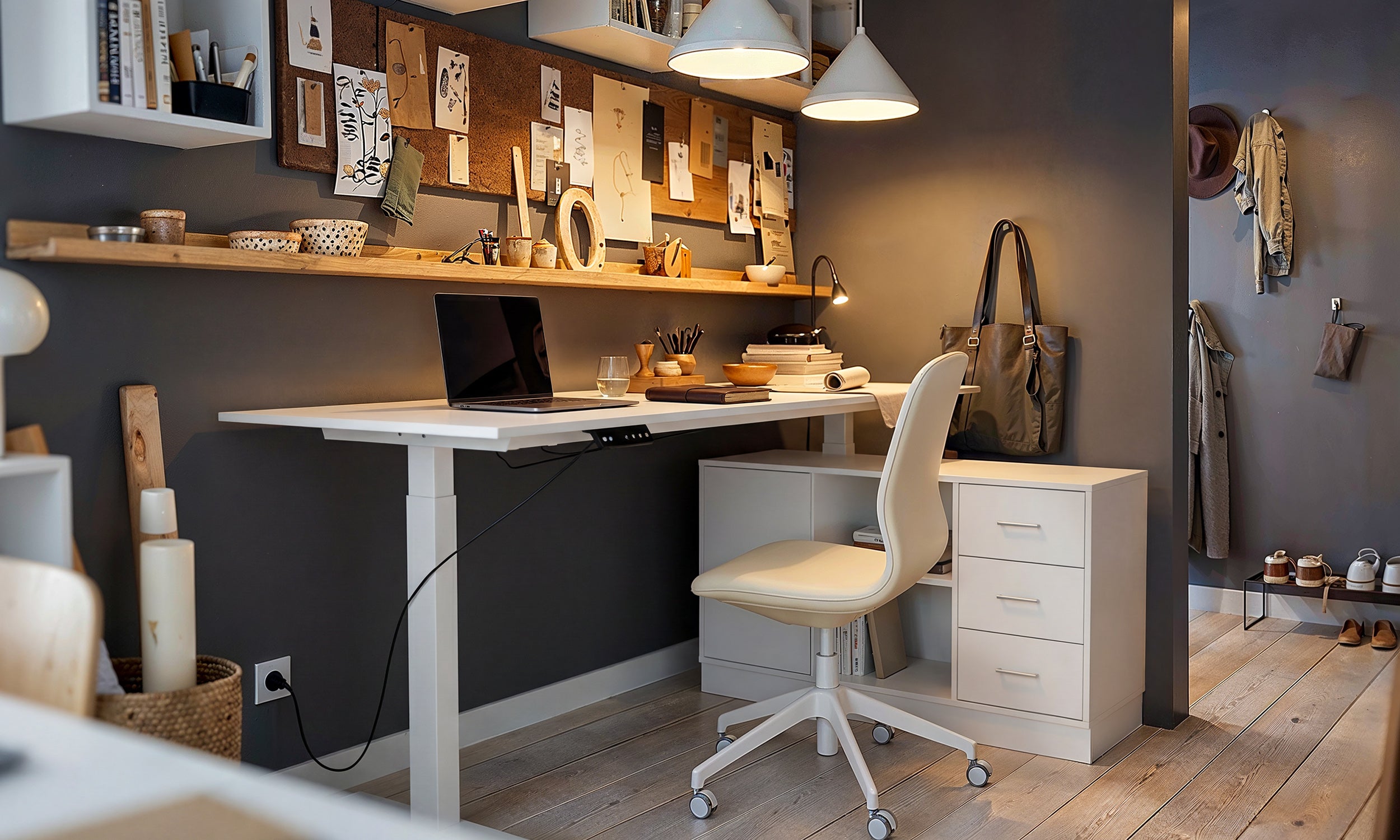
Every ergonomic workstation begins with seating. Before adjusting screen height or repositioning desk accessories, your chair must be set to provide stable, balanced support from the ground up. Because your chair sets your working height relative to the room, getting this foundation right simplifies every subsequent adjustment.
- Base Footing and Seat Height: Adjust the chair cylinder so your feet rest flat against the flooring with your thighs supported parallel to the floor. If the seat is elevated too high, your lower limbs dangle without firm contact, placing unnecessary tension across the thighs. Conversely, setting the seat too low directs excess pressure to the lower pelvis and tailbone.
- Seat Pan Depth and Clearance: Ensure there is a small gap between the front edge of the seat cushion and the back of your knees. A seat pan that presses directly into the back of the knees restricts natural leg movement and encourages users to slouch forward away from the backrest.
- Lumbar Contouring: Position the chair's lumbar cushion or curved backrest to fit directly into the natural inward curve of your lower back. The backrest should offer continuous, gentle contact while you sit fully back against the cushion, allowing your spine to maintain its upright silhouette without muscular strain.
- Armrest Level: Set the armrests so your forearms rest lightly upon them while your shoulders hang in a relaxed, dropped position. If the armrests force your shoulders upward into a shrug, or if they sit so low that you lean sideways to find contact, they compromise your neutral posture.
Desk Surface and Input Alignment: Elbow Height and Reach Zones
Once your seating establishes a grounded baseline, the next priority is coordinating your working surface with your natural arm position. The relationship between your elbows, the desktop, and your input devices dictates how comfortably your shoulders, wrists, and upper back can function across a workday.
In an optimal arrangement, your keyboard and mouse reside at a level that mirrors your natural resting elbow height. When your hands sit on the typing surface, your forearms should form an approximately level plane, allowing your wrists to hover or rest lightly in an unbent, neutral posture. When styling a dedicated workspace, reference our ergonomics guide to coordinate visual aesthetics alongside practical mechanical adjustments.
To keep physical exertion to a minimum, categorize your desktop into intuitive reach zones:
- Primary Reach Zone: This area covers the space directly in front of you that you can reach easily without extending your elbow or bending forward. Reserve this zone exclusively for high-frequency tools: your primary keyboard, pointing device, and immediate notepad.
- Secondary Reach Zone: This zone extends to the arc reached by sweeping your arms outward with elbows loosely bent. Keep items such as desktop reference books, stationery holders, and beverage coasters within this perimeter.
- Tertiary Reach Zone: Spanning the far corners and edges of your desk, this region requires leaning forward or standing to access. Restrict this area to decorative accents, ambient desk lamps, or equipment accessed only occasionally.
If your desk has a fixed surface height that sits higher than your natural seated elbow level, you may need to raise your chair to match the surface and introduce a stable footrest underneath. Maintaining adequate knee well clearance is equally essential; your legs should slide freely beneath the desk without striking crossbars, shallow drawers, or storage boxes.
Monitor and Screen Positioning: Sightlines and Viewing Distance
Visual alignment directly shapes neck and shoulder posture. The human head naturally tracks toward wherever visual focus is directed. If a monitor sits too low, too high, or at an offset angle, your neck and upper spine naturally bend to compensate, disrupting the neutral posture established by your chair.
Begin by setting your primary monitor directly in front of your central sitting position, rather than angled off to one side. The top horizontal border of the display glass should align roughly at or slightly below your natural horizontal eye level when looking straight ahead. Because human eyes naturally rest at a slight downward gaze when viewing objects in front of them, this placement allows you to scan the entire display surface comfortably without tipping your chin upward or bowing your head downward.
Viewing distance should balance legibility with relaxed focus. A practical visual rule of thumb is to place the screen roughly an arm's length away from your face when seated back against your chair. If you find yourself consistently leaning your torso forward toward the screen, increase the display font scale rather than shifting your physical posture out of alignment.
For dual-screen configurations, determine whether you use both monitors equally or rely predominantly on one. If one display handles the majority of your daily workflow, position that screen dead center and angle the secondary display slightly inward to the side. If you divide your time evenly across both displays, place them side by side with their inner bezels meeting directly along your center line, angled in a subtle V-shape to maintain equal focal distance across both panels.
Storage and Peripherals: Eliminating Physical Clutter and Task Strain
A frequently neglected component of correct office ergonomics is the spatial arrangement of desk storage and supporting cabinetry. Clutter on the working surface restricts arm travel and forces users into awkward reaching angles, twisting postures, and unbalanced body mechanics.
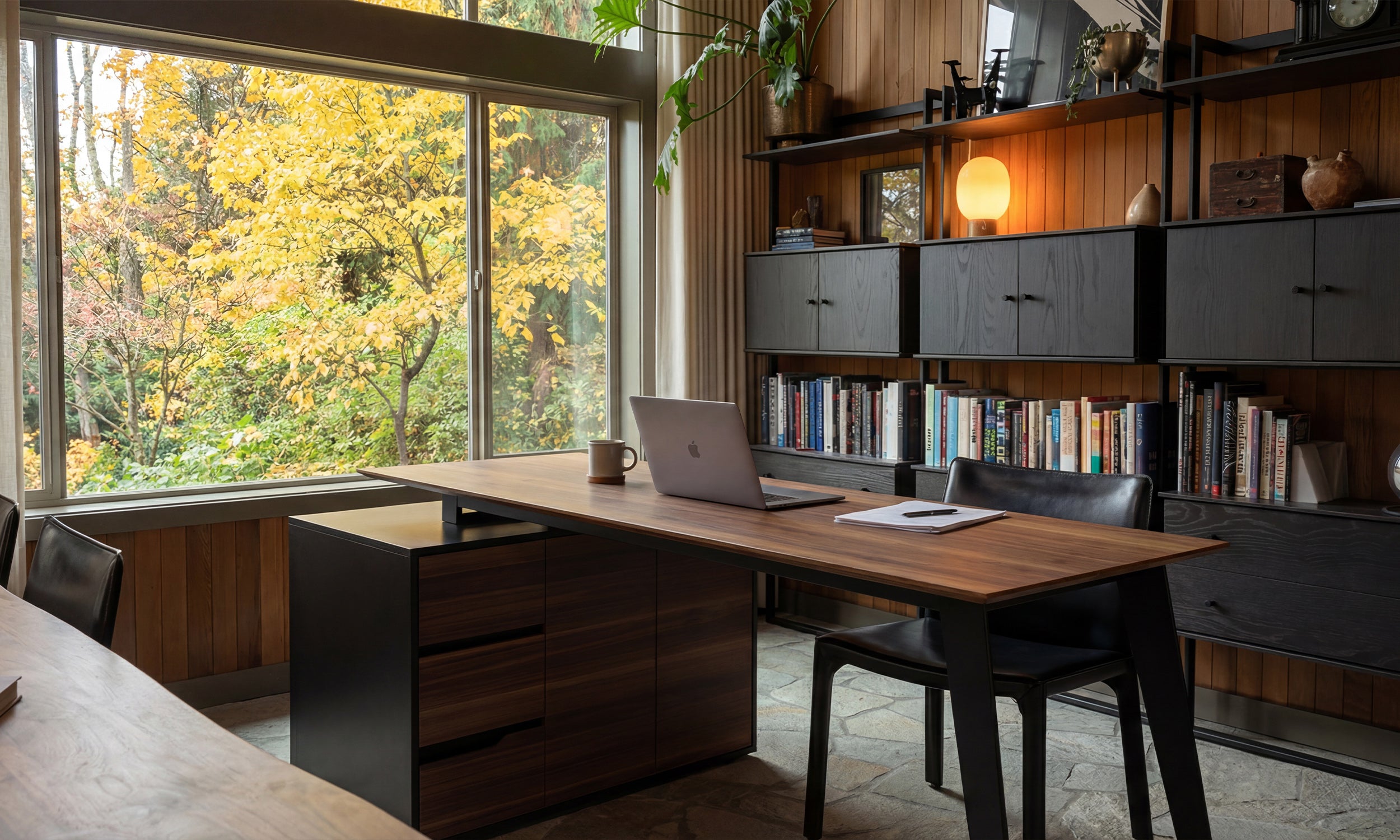
Integrating dedicated mobile pedestals, low credenzas, and integrated drawer units provides designated locations for daily work materials outside the primary desk footprint. Keeping secondary files, extra stationery, and bulky hardware off the desktop preserves open clearance for smooth mouse navigation and natural forearm placement.
Organizing the space beneath your desk is just as critical as managing the desktop. Cords, power strips, and storage boxes shoved under a workstation constrict foot movement and prevent your task chair from pulling in close enough to the desktop surface. When foot space is restricted, users often sit angled sideways or perch on the front edge of the seat cushion, completely negating the ergonomic benefits of an adjustable backrest. Route cables through dedicated wire raceways or under-desk trays to ensure the entire knee well remains open and functional.
A Routine Framework: Integrating Micro-Adjustments and Movement
Even the most meticulously tailored furniture setup cannot compensate for remaining completely motionless for hours at a time. The human body is designed for dynamic movement, and static positions naturally lead to fatigue over prolonged periods. Achieving long-term comfort involves pairing an ergonomically aligned workstation with intentional movement habits.
Build periodic posture shifts into your daily routine. Alternate between sitting fully supported against your backrest and sitting upright during phone calls or review sessions. If you utilize an adjustable sit-stand desk, transition between sitting and standing intervals throughout the workday, adjusting your monitor and input surfaces accordingly at each transition to maintain neutral elbow and eye alignments in both modes.
Periodically conduct a quick workstation check. Chairs, monitor arms, and desk accessories naturally shift over weeks of daily use as knobs loosen or items are pushed aside. Taking a moment each week to re-check your seat height, reset screen viewing distance, and clear primary reach zones keeps your setup operating as an effective ergonomic environment tailored to your comfort and workflow.


Leave a comment
This site is protected by hCaptcha and the hCaptcha Privacy Policy and Terms of Service apply.