












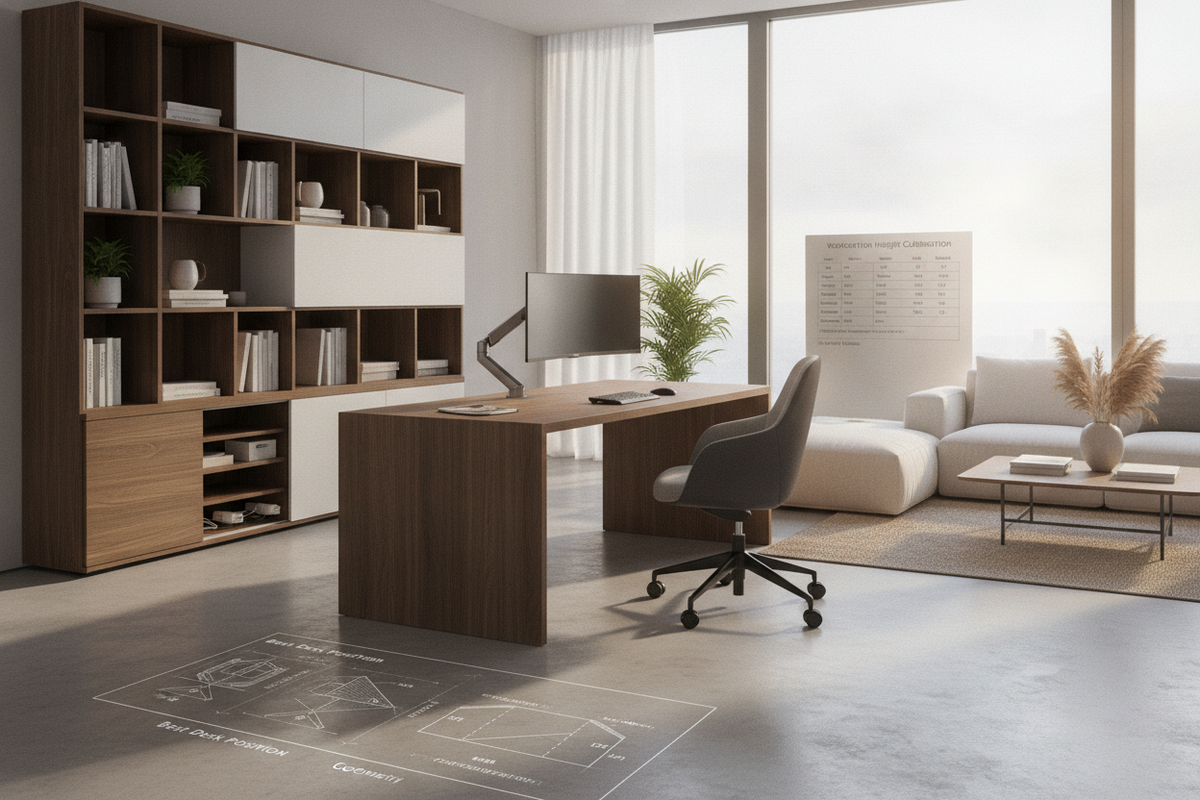
Establishing the best desk position requires balancing body geometry, furniture dimensions, and physical room flow. Whether arranging a dedicated home office or refining a study nook, aligning the relationship between your seating surface, table height, and visual displays creates a comfortable daily workflow. By understanding how skeletal angles interact with desktop elevations, you can build a supportive workstation that keeps you productive throughout long tasks.
Biomechanical Foundations: Defining the Best Desk Position
Achieving an ergonomic office position starts by establishing a neutral body orientation where joints rest without excess tension. When your body is aligned properly, body weight is supported evenly across the chair seat, backrest, and floor rather than concentrated in isolated pressure points.
The 90-Degree Postural Angle Tier (Hips, Knees, and Elbows)
The core geometry of neutral seating relies on balanced angles across your major joints. When seated, aim for your thighs to rest parallel to the floor with knees bent at or slightly beyond a right angle. Your hips should sit deep into the seat pocket so the backrest supports your lower spine, while your elbows hang naturally at your sides to meet the working surface without reaching forward.
Armrest and Forearm Surface Leveling
Armrests serve as an extension of the work surface rather than an isolated ledge. Adjusting armrests so they sit flush with your desktop elevation allows your forearms to glide onto the table without shrugging your shoulders upward or dropping your elbows downward. This horizontal continuity keeps your wrists in a flat, neutral line while typing or using navigation devices.
Workstation Height and Surface Calibration Tiers
Table height directly dictates upper body posture. If a desk is calibrated too high, your shoulders compensate by hiking upward; if it is set too low, your spine rounds forward. Evaluating your table surface relative to your seated elbow height is essential for comfortable computer work.
Adjustable Desktops vs. Standard Fixed Surfaces
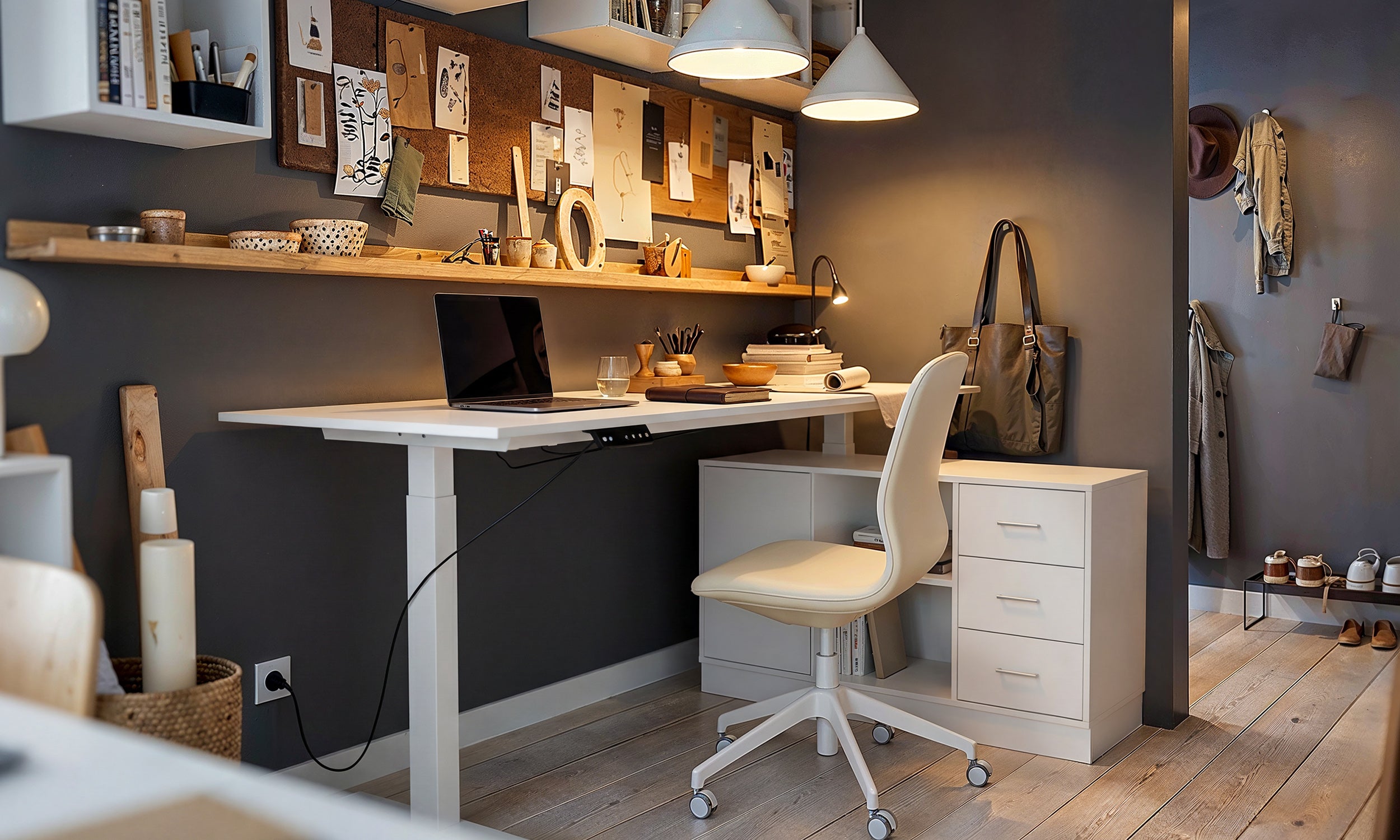
Standard fixed-height desks are built for average dimensions, which often require adjustments like height-adjustable chairs, under-desk footrests, or keyboard trays to fit individual body heights. Exploring varied structural frame options in a dedicated computer desk collection helps you select the right baseline table proportion for your space. Alternatively, incorporating an ergonomic office sit product provides dynamic elevation control, making it simple to toggle between seated and standing positions while maintaining proper elbow alignment.
Monitor Sightlines, Focal Distance, and Gaze Angles
Visual alignment drives your neck and head orientation. Position your primary monitor directly in front of your natural seated position, roughly an arm's length away. The top bezel of the display should sit at or slightly below eye level, allowing your gaze to angle slightly downward without tilting your cervical spine downward or backward.
Step-by-Step Workflow: How to Sit on Chair While Working on Computer
Learning what is the proper ergonomics for sitting at a desk requires a systematic setup routine. Rather than adjusting your desk first, build your posture from the floor upward to ensure proper support.
Phase 1: Chair Pan Depth and Lumbar Curvature Alignment
Begin by adjusting your chair height and seat pan depth:
- Sit completely back against the backrest so the lumbar contour fills the natural curve of your lower back.
- Check the clearance between the front edge of the seat cushion and the back of your knees, maintaining a small gap of approximately two to three fingers of space.
- Ensure the seat pan does not press firmly against your calves, allowing unrestricted lower limb circulation.
Phase 2: Desktop Height Matching and Foot Placement Support
Once your chair is configured to support your lower body, bring your seating position up to the work surface:
- Raise or lower your chair until your relaxed forearms rest parallel to the desktop surface.
- If raising your chair causes your feet to dangle or lift off the floor, place a stable footrest underneath to provide firm sole support.
- Keep your feet planted flat to distribute weight across your thighs and feet evenly.
Phase 3: Peripheral Zoning (Primary, Secondary, and Tertiary Reach)
Organize your work surface into functional reach envelopes to prevent repetitive overextension:
- Primary Zone: Place your keyboard and mouse within the arc formed by sweeping your forearms while keeping elbows loosely at your sides.
- Secondary Zone: Position frequently referenced notebooks, tablets, or stationery within an extended forearm reach.
- Tertiary Zone: Reserve the outer perimeter of your desk for display monitors, task lighting, and decorative items.
Spatial Layout and Perimeter Storage Integration
An effective desk position depends heavily on its surrounding room environment. For compact spaces or multi-use living rooms, planning spatial pathways and considering practical layouts such as those in our computer desk office guide ensures your workstation remains functional without cluttering your living area.
Chair Clearance and Pushback Radii
Ensure adequate open floor space directly behind your work chair. Maintaining an unobstructed buffer zone allows you to slide back and stand up smoothly without bumping into walls, radiators, or flanking cabinets. A clear perimeter also accommodates dynamic chair swivel and recline movements throughout the day.
Decoupled Storage and Organization Synergy
Keep your under-desk knee well completely open to allow unrestricted leg movement. Instead of storing towers or storage boxes beneath your legs, utilize detached perimeter storage such as mobile file pedestals, low credenzas, or floating shelving. Balancing your desk structure with functional perimeter organization creates a serene atmosphere, as highlighted in our office computer desk guide.
Troubleshooting Common Seated Posture Pitfalls
Even with calibrated furniture, everyday habits can compromise your alignment. Use these simple adjustments to maintain your optimal desk position:
- Crossing Legs: Tucking legs under the seat or crossing knees tilts the pelvis unevenly; keep both soles planted flat on the floor or footrest.
- Forward Head Lean: Leaning toward the screen indicates poor focal distance or small text size; increase display scaling and pull the screen closer.
- Wrist Pinching: Resting wrists hard against sharp desk edges restricts hand movement; float wrists naturally or use a soft wrist rest to keep joints neutral.
- Window and Light Glare: Position your desk perpendicular to windows rather than directly facing or backing against bright sunlight to avoid squinting.

Leave a comment
This site is protected by hCaptcha and the hCaptcha Privacy Policy and Terms of Service apply.